
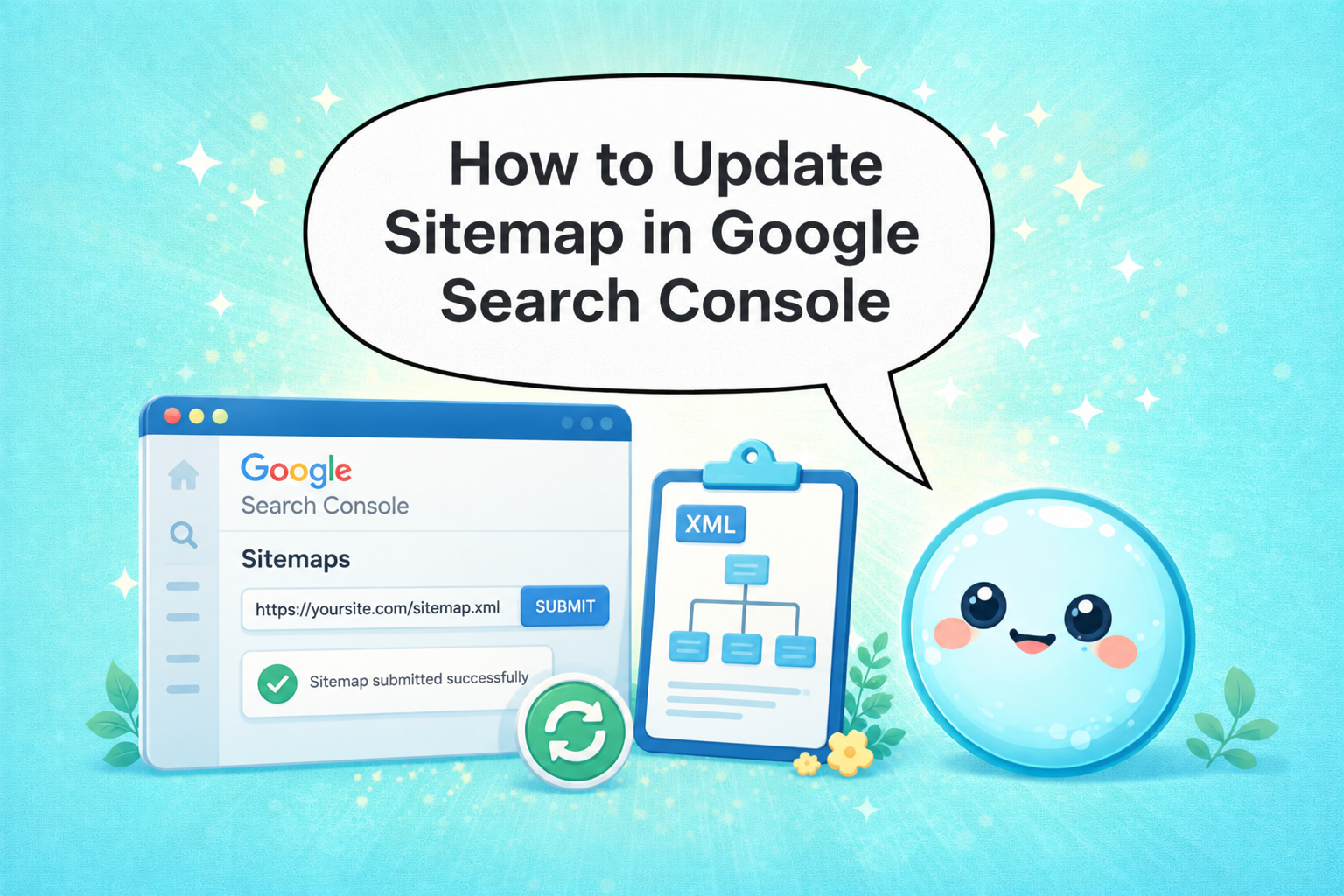

Every time you publish new content, restructure URLs, or migrate your site, Google needs a fresh signal to know what to crawl. Knowing how to update sitemap in Google Search Console is one of the most direct ways to give Googlebot that signal. Skip it, and you risk ranking delays, orphaned pages, and wasted crawl budget. In this guide, I’ll walk you through the exact steps I use, and the mistakes I see SEOs make constantly.
TL;DR
- Submit your sitemap via the Sitemaps report inside your Search Console property.
- Resubmitting an existing sitemap URL re-queues it for Googlebot without deleting history.
- Google typically processes a resubmitted sitemap within a few days, not instantly.
- Use the URL Inspection Tool to confirm individual URLs are indexed after submission.
How to Update Sitemap in Google Search Console: Step-by-Step
This is the core process I follow every time a client’s site changes significantly.
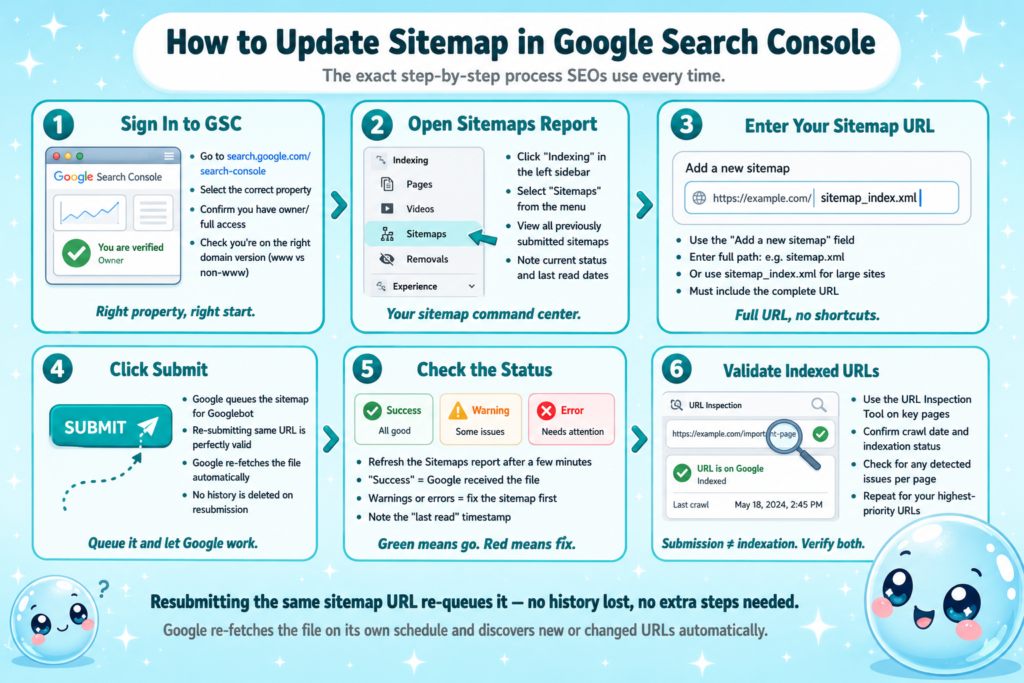
- Sign in to Google Search Console: Go to search.google.com/search-console and select the correct Search Console property.
- Open the Sitemaps report: In the left sidebar, click “Indexing,” then “Sitemaps.”
- Enter your sitemap URL: In the “Add a new sitemap” field, type your sitemap path (e.g., sitemap.xml or sitemap_index.xml). Include the full URL.
- Click Submit: Google queues the sitemap for Googlebot to crawl.
- Check the status: Refresh the Sitemaps report after a few minutes. A “Success” status means Google received it. A warning or error means something needs fixing.
- Validate indexed URLs: Use the URL Inspection Tool on key pages to confirm indexation status individually.
If your sitemap URL hasn’t changed (which is typical), resubmitting the same URL is enough. Google re-fetches the file and discovers new or changed URLs automatically.
What your sitemap file needs before submission:
- Valid XML format following Google’s sitemap protocol
- Only canonical URLs (matching your canonical tags exactly)
- HTTP status code 200 on every listed URL, no redirects, no 404s
- Correct <lastmod> timestamps reflecting actual publish or update dates
- Referenced in your robots.txt file for maximum discoverability
One pattern I see constantly: people submit a sitemap that lists URLs returning 301 redirects. Google will still crawl them, but it creates noise in your index coverage report and dilutes crawl budget. Clean the sitemap file first, then submit.
What Happens If You Don’t Update Your Sitemap?
Skipping sitemap updates doesn’t cause an immediate ranking collapse, but it creates compounding problems over time.
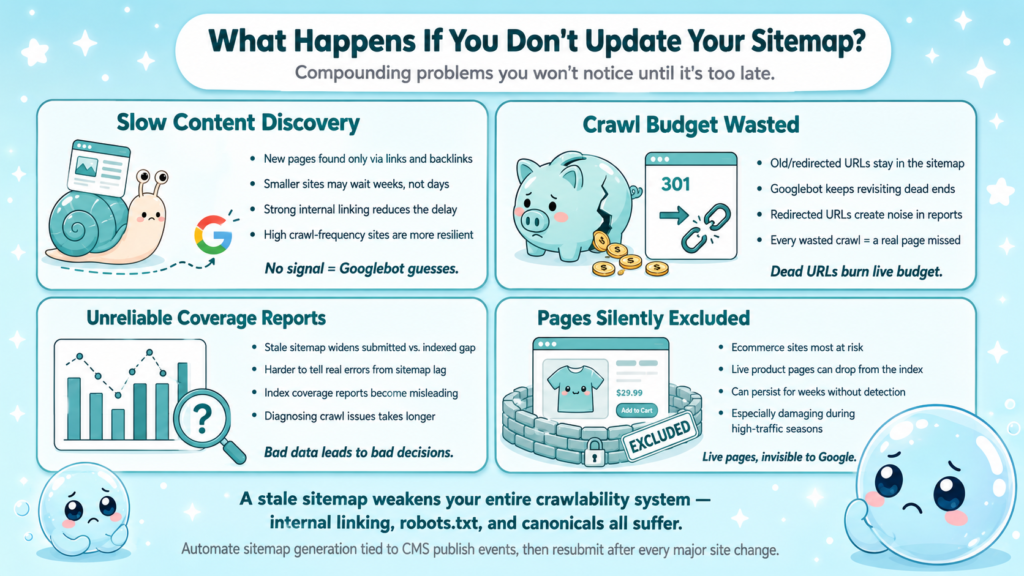
New content gets discovered slowly. Googlebot finds pages through internal linking and backlinks when no sitemap signal exists. For sites with strong internal linking and high crawl frequency, this delay might be days. For smaller or newer sites, it could stretch to weeks.
Deleted or redirected pages stay listed. If your XML sitemap still references old URLs after a redesign or migration, Googlebot keeps revisiting dead ends. This burns crawl budget on pages that no longer exist.
Index coverage reports become unreliable. When the sitemap is stale, the discrepancy between submitted URLs and indexed URLs widens. This makes it harder to diagnose real crawl errors versus sitemap lag.
If you run a large ecommerce site with thousands of product pages cycling in and out of stock, an outdated sitemap can quietly exclude live pages from Google’s index for weeks.
From a holistic SEO perspective, the sitemap is one layer of a larger crawlability system. It works in concert with internal linking, robots.txt directives, and canonical tags. A stale sitemap weakens every other layer.
The fix is simple: automate sitemap generation so it updates dynamically whenever content changes, then resubmit periodically or after major site changes. Platforms like WordPress with Yoast or Rank Math handle dynamic generation automatically. For custom builds, schedule a sitemap regeneration script tied to your CMS publish events.
How Often Should You Resubmit Your Sitemap to Google Search Console?
There’s no universal rule, but I use a tiered approach based on site activity:
| Site Type | Recommended Resubmission Frequency |
| News or high-volume blog | Daily (automate via ping or CMS) |
| Active ecommerce (frequent product changes) | Weekly |
| Regular content site (2–4 posts/week) | After each major content push |
| Static or infrequently updated site | After any structural change |
Resubmitting the same sitemap URL more often than your content changes provides no benefit. Google re-fetches it on its own schedule regardless.
Triggers that should prompt an immediate resubmission:
- Site migration to a new domain or URL structure
- Bulk URL changes (slug restructure, category renames)
- Launch of a new content section or subdirectory
- Recovery from a manual action or penalty
- After resolving widespread crawl errors flagged in Search Console
One thing I want to clarify: resubmission does not force Google to index your pages. It signals that the sitemap has been updated and re-queues it for Googlebot’s next crawl cycle. Indexation is a separate decision Google makes based on quality, authority, and internal linking signals. Understanding why SEO takes so long helps set the right expectations here.
Why Is My Updated Sitemap Not Being Indexed by Google?
This is the most common frustration I hear, and it almost always comes down to one of these causes:
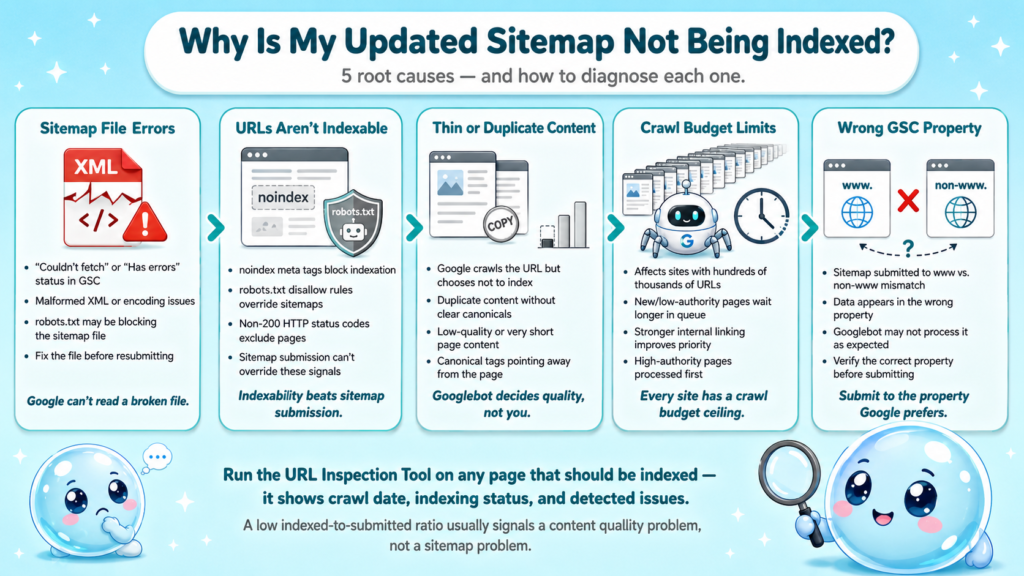
The sitemap file has errors. Google’s Sitemaps report shows a status for every submitted sitemap. “Couldn’t fetch,” “Has errors,” or “Couldn’t read” statuses mean Google can’t process the file. Check for malformed XML, encoding issues, or a blocked robots.txt directive.
URLs in the sitemap aren’t indexable. Pages blocked by noindex meta tags, disallowed in robots.txt, or returning non-200 HTTP status codes won’t be indexed regardless of sitemap submission.
The content is thin or duplicate. Googlebot may crawl a URL from the sitemap and choose not to index it due to low quality, duplicate content, or missing canonical tags pointing elsewhere.
Crawl budget constraints on large sites. For sites with hundreds of thousands of URLs, Googlebot prioritizes pages with stronger signals. New or low-authority pages may sit in the queue for extended periods.
The Search Console property is wrong. If you submitted the sitemap to a www property but your site primarily operates on a non-www version (or vice versa), the data shows up in the wrong property and Googlebot may not process it as expected.
To diagnose, run the URL Inspection Tool on a specific page that should be indexed. It tells you whether Google has crawled it, what the last crawl date was, and whether any indexing issues were detected. If you run an SEO audit regularly, this kind of indexation gap is exactly what surfaces early.
How to Submit a New Sitemap After a Site Migration
Site migrations are where sitemap errors do the most damage. I’ve seen well-planned migrations lose significant traffic simply because the sitemap wasn’t updated before Google re-crawled the domain.
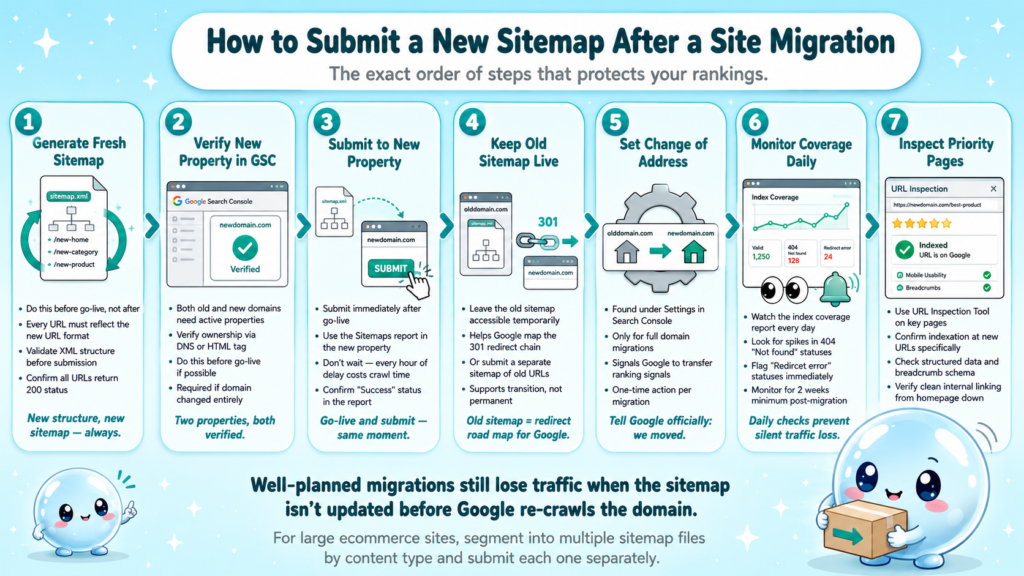
- Generate a fresh sitemap from the new site structure before go-live. Every URL should reflect the new URL format.
- Verify the new property in Google Search Console if the domain changed. Both old and new domains need active Search Console properties during migration.
- Submit the new sitemap to the new property via the Sitemaps report immediately after go-live.
- Keep the old sitemap accessible on the old domain temporarily. Update it to include 301-redirect signals where possible, or submit a separate sitemap of old URLs to help Google map the redirect chain.
- Set up a change of address in Search Console (under Settings) if this is a full domain migration.
- Monitor the index coverage report daily for the first two weeks. Watch for spikes in “Not found (404)” or “Redirect error” statuses.
- Use the URL Inspection Tool to manually check that priority pages are being indexed at the new URLs.
Structured data and breadcrumb schema on the new site also help Googlebot understand the revised site architecture faster. Pair this with clean internal linking from your homepage down to key category and product pages.
For large ecommerce migrations, segment your sitemap into multiple files (product pages, category pages, blog posts) and submit each separately. This gives you granular data on which sections are processing correctly in the Sitemaps report.
How Do You Know If Google Has Crawled Your Updated Sitemap?
The Sitemaps report gives you three signals: last read date, submitted URL count, and indexed URL count.
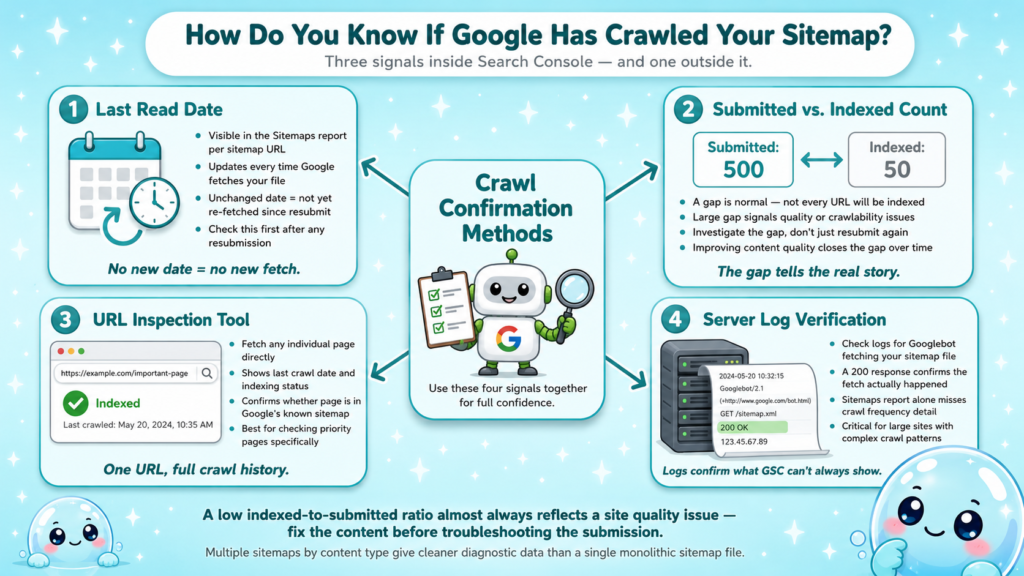
Last read date: This timestamp updates each time Google fetches your sitemap file. If this date hasn’t changed since your resubmission, Google hasn’t re-fetched it yet.
Submitted vs. indexed count: A gap between these numbers is normal, not every submitted URL will be indexed. A large gap (submitting 500 URLs but only 50 indexed) signals quality or crawlability issues worth investigating.
URL Inspection Tool: For individual URL confirmation, fetch any page from your sitemap directly. The “Coverage” section shows the last crawl date, indexing status, and whether the page is in the sitemap Google knows about.
Beyond Search Console, you can check server logs to confirm Googlebot actually fetched your sitemap file. A 200 response from Googlebot in your logs confirms the fetch happened. This level of detail matters on large sites where the Sitemaps report alone doesn’t give you crawl frequency data.
A low indexed-to-submitted ratio often reflects a site quality issue, not a sitemap problem. Fix the content before troubleshooting the submission.
You can also have multiple sitemaps submitted simultaneously, one per content type or subdirectory, which makes it easier to isolate where indexation gaps occur. At sneo.ai, when we analyze a site’s crawl behavior, this multi-sitemap structure gives much cleaner diagnostic data than a single monolithic file.
Conclusion
- Submit or resubmit your sitemap through the Sitemaps report whenever content structure changes significantly.
- Clean your sitemap file before submission: 200-status URLs only, matching canonical tags, valid XML.
- Use the URL Inspection Tool and index coverage report to confirm crawl and indexation after submission.
- Knowing how to update sitemap in Google Search Console is table stakes, the real gains come from pairing it with solid internal linking, crawl budget management, and regular SEO auditing.
Frequently Asked Questions
Q1: What is the difference between resubmitting and deleting a sitemap in Google Search Console?
Resubmitting keeps your sitemap history intact and re-queues the file for Googlebot. Deleting removes it from Search Console’s tracking entirely, though Google may still crawl it if the file exists on your server. Delete only when you’re permanently retiring a sitemap URL and replacing it with a new one.
Q2: Can I have multiple sitemaps submitted in Google Search Console at the same time?
Yes. You can submit multiple sitemaps simultaneously, either as individual files or via a sitemap index file. Most large sites use a sitemap index that references separate files for blog posts, product pages, and category pages. This setup makes diagnosing indexation issues by content type much easier.
Q3: How long does it take Google to process a resubmitted sitemap?
Google typically fetches a resubmitted sitemap within a few days. Actual indexation of the URLs within it can take longer, depending on your site’s crawl frequency and page authority. High-authority sites with frequent updates are crawled faster than newer or low-traffic sites.
Q4: Does resubmitting my sitemap guarantee my pages will rank faster?
No. Sitemap submission speeds up discovery and crawling, not ranking. Google still evaluates content quality, relevance, authority, and user signals before ranking a page. Think of the sitemap as opening the door for Googlebot, what it finds inside determines whether the page ranks.
Q5: What HTTP status codes should URLs in my sitemap return?
Every URL in your sitemap should return a 200 status code. Avoid listing URLs that redirect (301/302), return errors (404/500), or are blocked by robots.txt. Including non-200 URLs wastes crawl budget and inflates error counts in your index coverage report.
Q6: How do I know if my sitemap is the reason traffic dropped?
Check the Sitemaps report for crawl errors or a drop in indexed URL count around the time traffic fell. Then cross-reference with the URL Inspection Tool on affected pages. If you want a faster answer, sneo.ai connects to your Search Console data and lets you ask directly why traffic dropped, surfacing the most likely causes without manual digging.