

Google Search Console is one of the most underrated keyword research tools available, and it’s free. I’ve worked with dozens of site owners who spend hundreds monthly on third-party tools while ignoring the first-party data sitting right inside their Search Console account. If you want to know how to use Google Search Console for keyword research effectively, this guide walks you through everything: from reading the Performance Report to uncovering low-hanging-fruit opportunities your competitors are missing.
TL;DR
- The Search Performance Report shows real queries your pages rank for, with impressions, clicks, CTR, and average position.
- Filter by position 5–20 to find quick-win keywords worth targeting.
- High-impression, low-CTR queries signal title or meta description fixes, not new content.
- Search Console gives you intent-matched data no third-party scraper can replicate.
What Keywords Can You Actually Find in Google Search Console?
Most people open Search Console, glance at the Performance Report, and close it. That’s a mistake I made early on, and it costs sites real traffic every day.
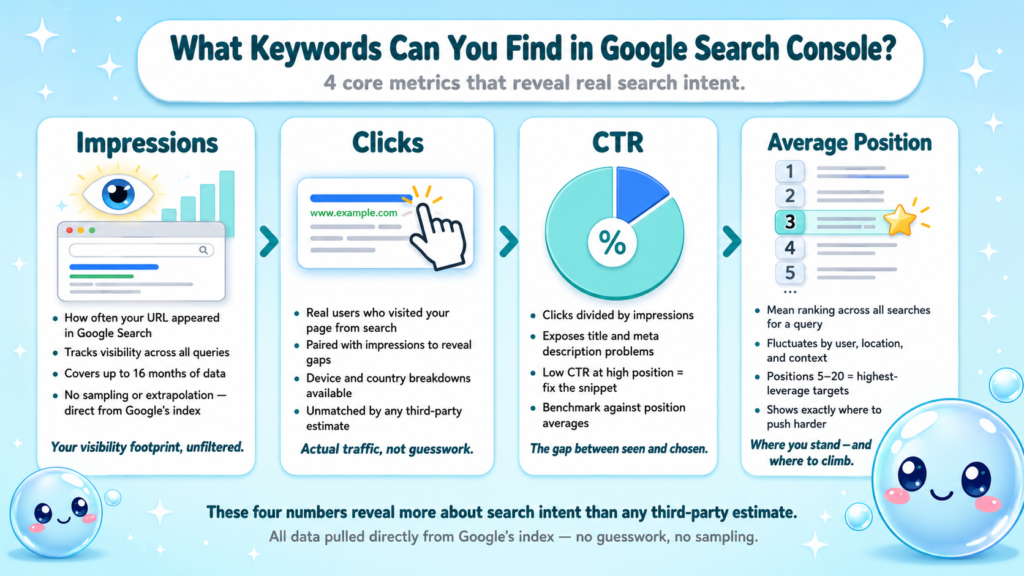
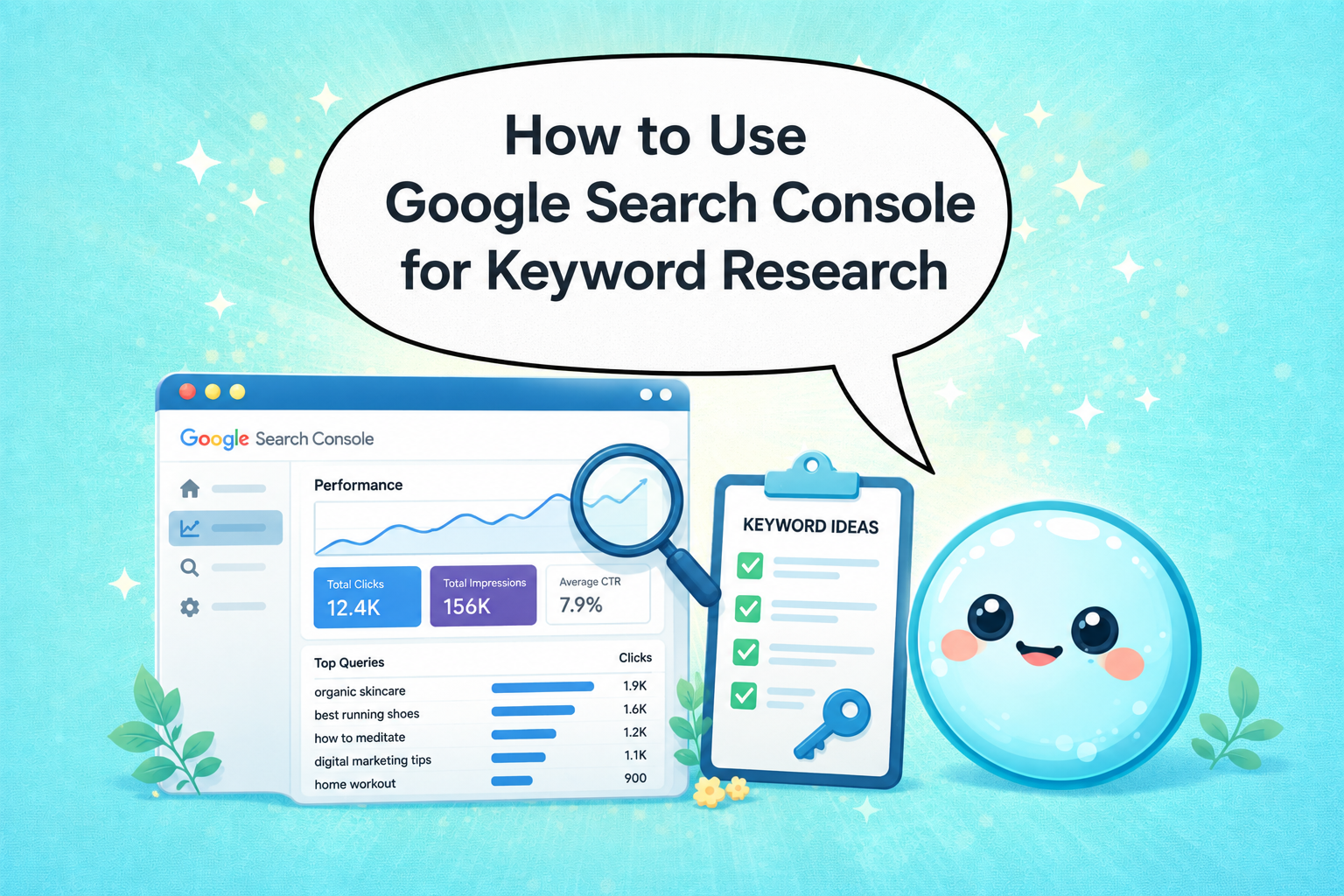
The Search Performance Report surfaces every query Google has connected to your pages over the last 16 months. Each query comes with four core metrics:
- Impressions: How often your URL appeared in Google Search results for that query.
- Clicks: How many users clicked through to your page.
- Click-Through Rate (CTR): Clicks divided by impressions, expressed as a percentage.
- Average Position: Your mean ranking position across all searches for that query.
Together, these four numbers tell you more about actual search intent than any estimated volume metric from a third-party tool. The data is pulled directly from Google’s index, which means no sampling, no extrapolation.
Beyond raw queries, you can also segment data by:
- Page: See which URLs attract which queries.
- Country: Identify geographic opportunities, especially useful if you’re exploring SEO localization strategies.
- Device: Separate mobile and desktop search behavior.
- Search type: Web, image, video, or news queries.
- Date range: Compare performance across custom time windows.
One thing I find genuinely useful: Search Console also exposes queries that trigger SERP Features like featured snippets and knowledge panels. If you see a query with strong impressions but your page isn’t winning the featured snippet, that’s a direct content optimization signal.
The URL Inspection Tool adds another layer. It tells you whether a specific page is indexed, when it was last crawled, and whether it’s eligible to appear in search results, context that helps you validate whether your keyword research efforts are even targeting indexable pages.
How to Use Google Search Console for Keyword Research: Step-by-Step
This is the process I walk through when auditing a new client site. It takes under 30 minutes once you know the workflow.
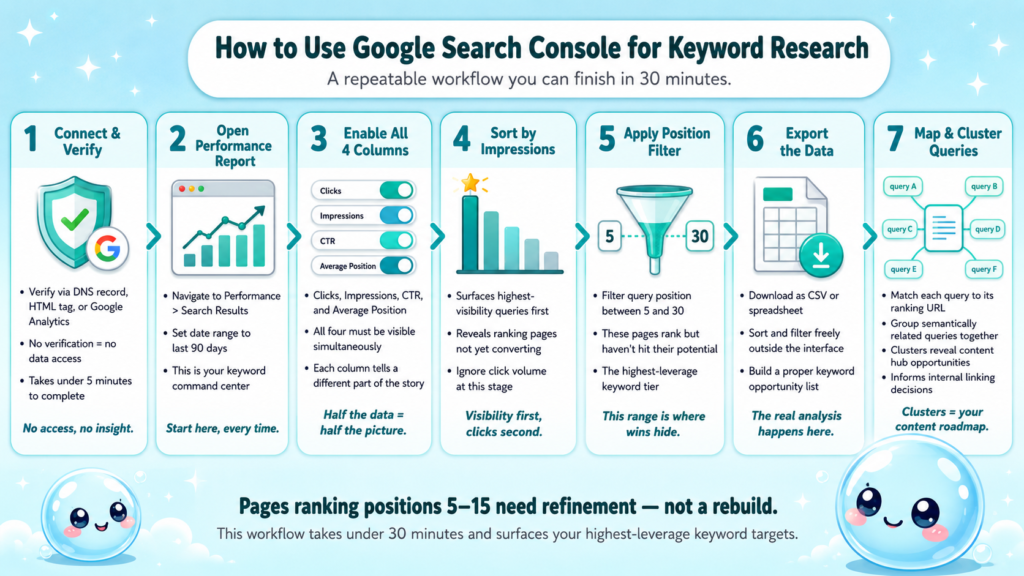
- Connect Google Search Console: Verify ownership via DNS record, HTML tag, or Google Analytics. Without verification, you see no data.
- Open the Performance Report: Navigate to Search Results under the Performance section. Set your date range to the last 90 days as a starting point.
- Enable all four columns: Click the boxes for Total Clicks, Total Impressions, Average CTR, and Average Position. All four must be visible.
- Sort by Impressions (descending): This surfaces your highest-visibility queries first, regardless of whether they’re converting to clicks.
- Apply a Position filter: Click “New” under Filters, select “Query position,” and set it between 5 and 30. These are your ranking pages that haven’t yet reached their potential.
- Export the data: Download as a spreadsheet so you can sort, filter, and build a proper keyword opportunity list outside the interface.
- Map queries to pages: Use the Page filter to identify which URL is ranking for each query. One page ranking for dozens of related queries often signals a strong content hub worth expanding.
- Look for query clusters: Group semantically similar queries together. These clusters reveal how Google’s semantic search algorithm understands your content, which informs internal linking and content depth decisions.
Queries ranking between positions 5 and 15 are your highest-leverage targets. A page already ranking on page one just needs refinement, not a full rebuild.
This workflow pairs well with a broader ongoing SEO process rather than one-off audits.
How to Find Low-Hanging Fruit Keywords in Google Search Console
“Low-hanging fruit” is overused, but the concept is real: pages that already rank just need a nudge. Here’s how I find them systematically.
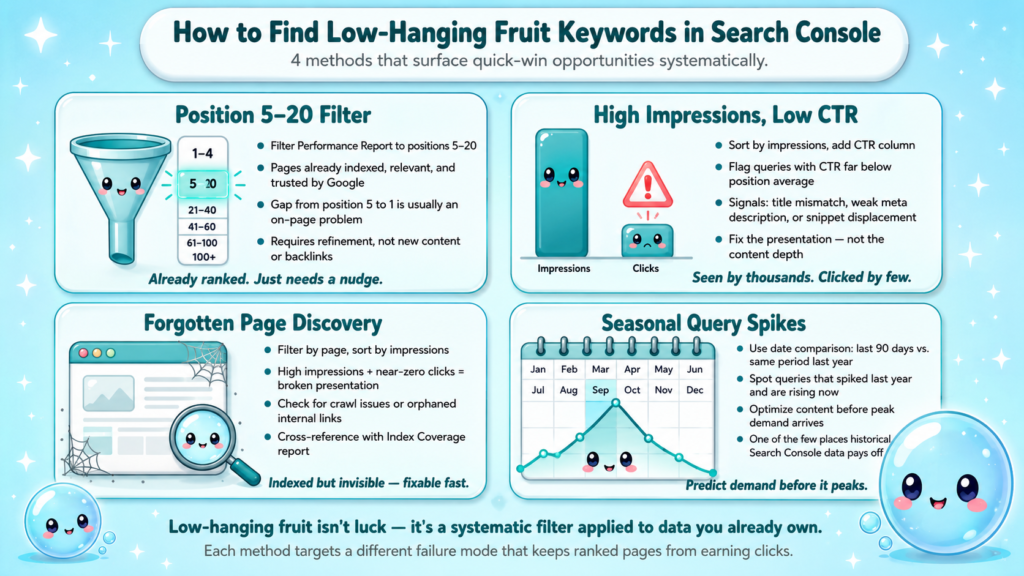
The Position 5–20 Filter Method:
In the Performance Report, filter queries to positions 5 through 20. Any query where your page averages in this range is already indexed, relevant, and partially trusted by Google. The gap between position 5 and position 1 is often a content depth or on-page optimization problem, not a backlink problem.
The High Impressions, Low CTR Signal:
Sort your query list by impressions, then add a CTR column. Any query with significant impressions but a CTR far below what you’d expect for its average position is underperforming. This usually points to:
- A title tag that doesn’t match search intent
- A meta description that fails to create urgency or relevance
- A competitor winning a featured snippet above your result
I cover this specific pattern in more detail in the next section, but the key insight is that these queries don’t need new content, they need better presentation.
The “Forgotten Page” Discovery:
Filter by page, then sort by impressions. Pages that receive impressions but almost zero clicks often have crawl issues, poor meta data, or have been orphaned from your internal linking structure. Cross-reference with the Index Coverage report and the URL Inspection Tool to rule out indexing problems. If the page is indexed and appearing but not getting clicks, the fix is on-page.
Seasonal Query Spikes:
Use the date comparison feature to compare the last 90 days against the same period the previous year. Queries that spiked last year and are starting to rise now give you a content optimization runway before peak demand hits. This is one of the few places where historical trend data in Search Console pays dividends.
How to Find Keywords with High Impressions but Low CTR
This is one of the most actionable analyses you can run, and it takes about ten minutes. I run it for every site I audit as part of a structured SEO audit process.
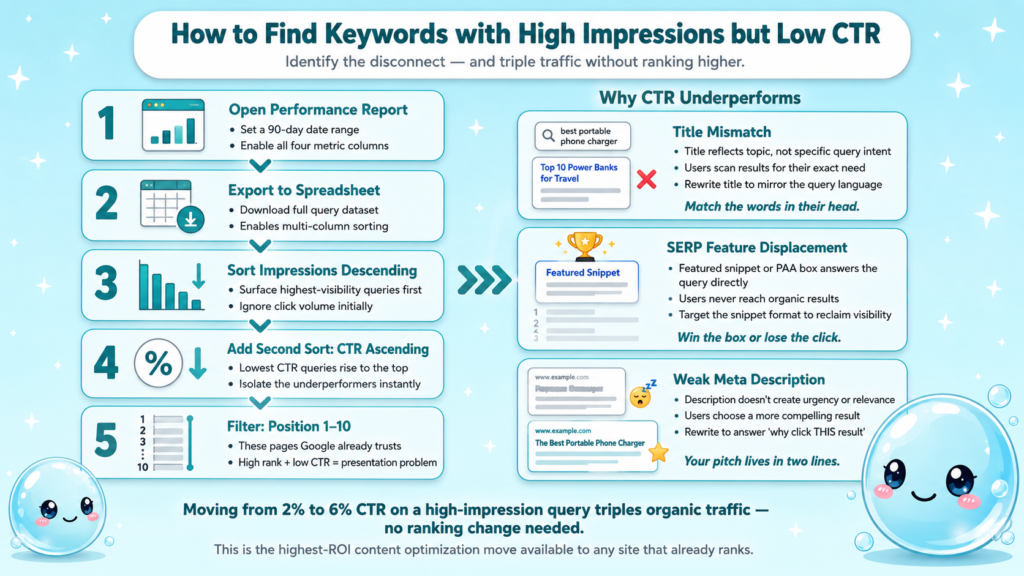
Step-by-step:
- Open the Performance Report, set a 90-day date range.
- Enable Clicks, Impressions, CTR, and Position columns.
- Export to a spreadsheet.
- Sort by Impressions descending, then add a second sort by CTR ascending.
- Focus on queries with high impressions, CTR notably below their position average, and average position between 1 and 10.
These are pages Google has decided are relevant enough to show prominently, but users aren’t clicking. That disconnect is almost always caused by one of these issues:
- Title mismatch: Your title reflects the topic but not the specific intent behind the query.
- SERP feature displacement: A featured snippet, knowledge graph result, or People Also Ask box is answering the query directly, so users never click.
- Weak meta description: The snippet doesn’t give users a reason to choose your result over the others.
For featured snippet opportunities specifically, look for informational queries where your page ranks in positions 2 through 5. If the top result is a featured snippet from a competitor, analyze how it’s structured. Reformatting your answer as a concise, directly-answerable paragraph or numbered list often captures the snippet, which can dramatically increase CTR even without a ranking jump.
Winning a featured snippet on a query you already rank for is the highest-ROI content optimization move available.
The CTR improvement compounds over time. A page moving from 2% CTR to 6% CTR on a high-impression query triples its organic traffic without any change in ranking.
Can Google Search Console Replace a Keyword Research Tool?
Short answer: no. Useful answer: it depends on what you’re trying to do.
Here’s how Search Console compares against dedicated tools for common keyword research tasks:
| Task | Google Search Console | Ahrefs / Third-Party Tools |
| Find keywords your site already ranks for | Excellent | Good (data is estimated) |
| Discover keywords your site has zero presence for | No | Yes |
| Assess keyword difficulty | No | Yes |
| Get accurate volume estimates | No | Estimated only |
| Understand real CTR for your specific site | Exact data | Not available |
| Identify SERP feature opportunities on live pages | Yes | Partial |
| Historical trend data for your pages | Up to 16 months | Varies by plan |
Search Console wins decisively when the research question is about your existing content. Third-party tools win when the question is about opportunities you haven’t yet targeted.
My recommendation: use Search Console as your primary research layer for optimization tasks, and use tools like Google’s Keyword Planner or Ahrefs for net-new topic discovery. The two approaches are complementary, not competitive.
This is also where sneo.ai adds a layer that neither tool covers on its own: AI-driven analysis that reads your Search Console data and tells you specifically which queries to act on, in plain language, without you needing to run the filters manually.
For a fuller picture of what good SEO reporting should include, Search Console data should always be the anchor.
What Is the Performance Report and How Do I Use It for Keywords?
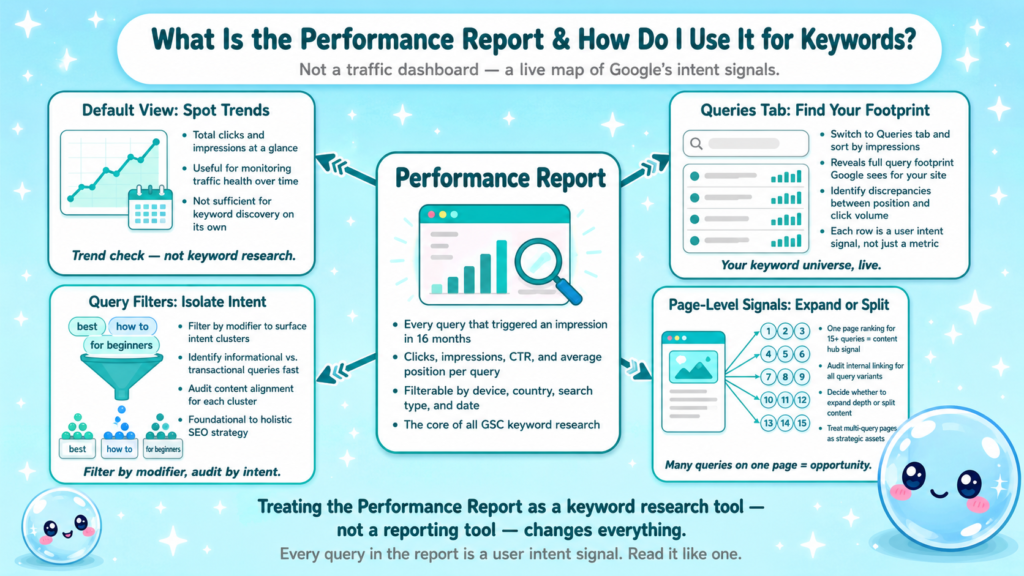
The Performance Report is the core of how to use Google Search Console for keyword research. It’s not just a traffic dashboard, it’s a live map of how Google connects your content to user queries.
What the report shows:
- Every search query that triggered an impression of your site in the last 16 months
- The pages those queries led to
- Aggregated and page-level metrics for clicks, impressions, CTR, and average position
- Breakdowns by device, country, search type, and date range
How to read it for keyword research purposes:
The default view shows total clicks and impressions. That’s useful for trend monitoring, but not for keyword discovery. Switch to the Queries tab and sort by impressions to see your full query footprint.
Pay attention to queries where your average position is strong but click volume seems low relative to that position. This discrepancy usually reveals one of three things: the query is dominated by SERP features, your page’s title and description need updating, or the query has lower actual search frequency than its impressions suggest.
Using Query Filters strategically:
Query Filters let you narrow the report to specific keyword patterns. For example, filtering for queries containing a modifier like “best,” “how to,” or “for beginners” quickly surfaces intent clusters. I use this to audit whether my content is aligned with the informational, navigational, or transactional intent of each query cluster, a foundational part of holistic SEO.
The Performance Report also feeds directly into page-level decisions. When I see a page ranking for fifteen related queries, that’s a signal to audit its internal linking, check whether the content covers all those query variants, and consider whether splitting or expanding content would help or hurt.
Treating the Performance Report as a keyword research tool rather than a reporting tool changes how you use it. Every query is a user intent signal, not just a traffic metric.
Conclusion
Search Console is the most honest keyword data source you have access to. Here’s what to take away:
- The Performance Report gives you real queries, real CTR, and real positions, no estimates.
- Filter for positions 5–20 to find pages closest to a meaningful ranking improvement.
- High impressions with low CTR means fix the title or meta description, not the content depth.
- Search Console complements third-party tools; use both, not one or the other.
If you want to skip the manual filtering and get straight to answers, sneo.ai connects directly to your Search Console data and surfaces the exact opportunities worth acting on.
Frequently Asked Questions
Q1: How do I access keyword data in Google Search Console?
Log into Search Console, select your property, then open Performance > Search Results. Click the Queries tab to see every keyword triggering impressions for your site. Enable all four metric columns for the full picture.
Q2: How many keywords can I see in Google Search Console?
The Performance Report surfaces up to 1,000 queries per view by default. To see more, use filters or export the data and combine filtered exports. Segmenting by page or device often reveals query sets the default view doesn’t surface.
Q3: Is Google Search Console better than Ahrefs for keyword research?
They serve different purposes. Search Console gives exact data for queries your site already ranks for. Ahrefs surfaces keyword opportunities you have no current ranking for. Use both together for a complete keyword strategy rather than treating them as alternatives.
Q4: How often should I check Search Console for keyword opportunities?
A monthly review of the Performance Report is a baseline minimum. For active campaigns or sites with recent content changes, a weekly check catches ranking movements before they become traffic problems. Quarterly trend comparisons are useful for seasonal planning.
Q5: What does average position mean in Search Console?
Average position is the mean ranking your page holds across all searches for a given query during the selected date range. A position of 3.7 means your page appeared somewhere around the third or fourth result on average, though position fluctuates across users and search contexts.
Q6: Can I use Search Console keyword data to improve existing content?
Yes, and it’s one of the highest-ROI moves in SEO. Find pages already ranking for multiple related queries, check which queries have strong impressions but weak CTR, then update titles, headings, and content structure to better match those query intents. No new pages required.