

I’ve audited hundreds of sites over the years, and the moment I started learning how to use Screaming Frog to improve on-page SEO, my audit speed tripled and my fix-rate accuracy went through the roof. This tool doesn’t replace strategic thinking, but it makes the diagnostic work faster and far more precise. Whether you’re an in-house SEO manager, a freelancer juggling ten clients, or an agency running audits at scale, this guide walks you through every meaningful feature Screaming Frog offers for on-page analysis.
TL;DR
- Screaming Frog crawls your site and surfaces on-page issues like broken meta data, duplicate titles, thin content, and redirect chains in minutes.
- Connect it to Google Search Console and Google Analytics for richer, traffic-weighted analysis.
- Export filtered reports by issue type to build a prioritised fix list fast.
- Pair your crawl data with an AI analysis layer to move from findings to actionable decisions.
What Can Screaming Frog Tell You About On-Page SEO Issues?
The Screaming Frog SEO Spider is a desktop crawler that mimics how Googlebot reads your site. It fetches every URL it finds and logs dozens of on-page data points per page, making it the closest thing to a real-time snapshot of what Google sees when it visits.
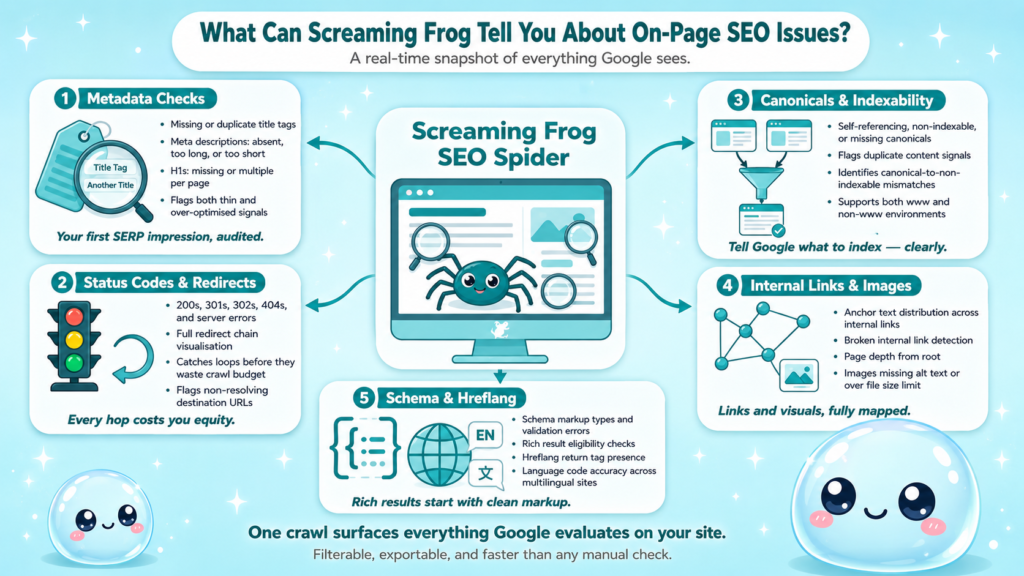
Here’s what it surfaces out of the box:
- Title tags: missing, duplicate, too long, or too short
- Meta descriptions: missing, duplicate, or over the character threshold
- H1 tags: missing or multiple per page
- HTTP status codes: 200s, 301s, 302s, 404s, and server errors
- Canonicals: self-referencing, non-indexable, or missing
- Internal links: anchor text distribution, broken links, and page depth
- Images: missing alt text, oversized files
- Structured data: schema markup validation results
- Hreflang attributes: missing return tags, incorrect language codes
What makes Screaming Frog genuinely powerful isn’t any single check. It’s the combination of seeing all of this at once, filterable and exportable. A typical on-page audit that might take two days of manual checking can be reduced to a few hours of crawl time plus analysis.
For enterprise sites with hundreds of thousands of URLs, the paid licence (under £200 per year as of 2025 pricing) unlocks unlimited crawling. The free version caps at 500 URLs, which works fine for smaller sites or quick spot-checks.
One thing I always remind clients: Screaming Frog shows you what is broken. It doesn’t tell you why traffic dropped or which of these broken things is hurting your rankings the most. That interpretive layer is where tools like sneo AI come in, connecting your Search Console data to conversational analysis so you can move from a list of issues to a prioritised action plan.
Understanding what crawling in SEO actually means helps you appreciate why this tool matters so much at the diagnostic stage.
Screaming Frog On-Page SEO Audit: Step by Step
Learning how to use Screaming Frog to improve on-page SEO starts with a clean, configured crawl. Here’s the process I follow for every client audit:
- Download and install: Grab the latest version from the official Screaming Frog site. Enter your licence key if you have one, or proceed on the free tier.
- Configure spider settings: Go to Configuration → Spider. Enable JavaScript rendering if the site is heavily JS-driven. Set crawl depth and speed limits to avoid hammering a live server.
- Set your user agent: Match it to Googlebot Desktop or Googlebot Smartphone depending on the site’s mobile posture.
- Enter the start URL: Paste the root domain into the address bar and hit Start. For large sites, you can upload a list of URLs via Mode → List.
- Connect Google Search Console: Go to Configuration → API Access → Google Search Console. Authenticate with your account. This pulls in clicks, impressions, and average position data alongside crawl findings.
- Connect Google Analytics (optional): Same menu, adds sessions and conversion data per URL so you can weight your fix list by traffic impact.
- Let the crawl complete: Watch the progress bar. For sites under 10,000 URLs, most crawls finish in under 30 minutes on a standard connection.
- Filter by issue type: Use the top tab bar (Page Titles, Meta Description, Response Codes, etc.) and the filter dropdown to isolate problems.
- Export reports: Hit Export → select your filtered view → save as CSV. Import into Google Sheets for client-ready reporting.
This workflow surfaces every on-page issue in one pass. The next sections cover how to act on the most common findings.
How to Find Missing Meta Descriptions in Screaming Frog
Meta description analysis is one of the fastest wins in any on-page audit. Click the Meta Description tab at the top of Screaming Frog’s interface. The filter dropdown gives you four categories to work through:
- Missing: no meta description tag present at all
- Duplicate: same description text used across multiple URLs
- Too long: exceeds roughly 155–160 characters (Google truncates anything longer in the SERP)
- Too short: under 70 characters (a signal the description may be thin or auto-generated)
Sort by the “Missing” filter first. Export that list. These pages have no SERP snippet control at all, which means Google will generate one from body text, and it’s usually not compelling. Pages that are already ranking, even weakly, benefit most from a well-written meta description because it directly affects click-through rate.
For the duplicate filter, cross-reference with Search Console data. If two URLs with identical meta descriptions are competing for the same query, you’ve likely found a keyword cannibalisation pair. Fix the meta description and audit the canonicals on both URLs.
A few rules I apply when rewriting:
- Lead with the page’s core benefit or answer, not the brand name
- Include the primary keyword naturally within the first 60 characters
- Write for the human reading the SERP, not the crawler reading the tag
- Test final length in a SERP snippet preview tool before publishing
Understanding what on-site SEO requires holistically means meta descriptions are never isolated fixes. They’re connected to title tag quality, content depth, and your overall click-through rate strategy.
Using Screaming Frog to Fix Title Tag Issues on a Website
Title tag optimization is where most on-page audits find the highest volume of fixable issues. Click the Page Titles tab in Screaming Frog and run through these filters:
| Filter | What It Means | Priority |
| Missing | No title tag rendered | Critical |
| Duplicate | Same title on 2+ pages | High |
| Over 60 characters | May be truncated in SERPs | Medium |
| Under 30 characters | Likely too vague or thin | Medium |
| Same as H1 | Not wrong, but a missed opportunity | Low |
Missing titles are critical because Google will generate its own, and it rarely chooses what you would choose. Duplicate titles are a keyword cannibalisation flag: two pages competing for the same search intent with identical signals.
For the “over 60 characters” filter, don’t bulk-shorten everything. Check first whether those pages are ranking and getting clicks. A long title that’s performing shouldn’t be touched just to hit an arbitrary character count.
When rewriting titles, the structure I use most often is: Primary Keyword | Secondary Modifier | Brand. For example: “Technical SEO Audit Guide | Step-by-Step | sneo AI.” This front-loads the query term, adds specificity, and keeps brand presence without cannibalising the keyword space.
Export the full title report, sort by duplicate, and cross-reference with Search Console to see which URL in each duplicate pair has stronger performance. That’s your canonical winner. Fix the title on the weaker URL, update its canonical tag if needed, and let Google settle.
Understanding why SEO audits matter is the strategic frame around every title fix you make. Each change you make compounds across sessions, impressions, and rankings over time.
How to Identify Thin Content Pages Using Screaming Frog
Thin content detection is one of the more nuanced uses of Screaming Frog, because the tool doesn’t directly tell you a page is thin. You have to infer it from a combination of signals.
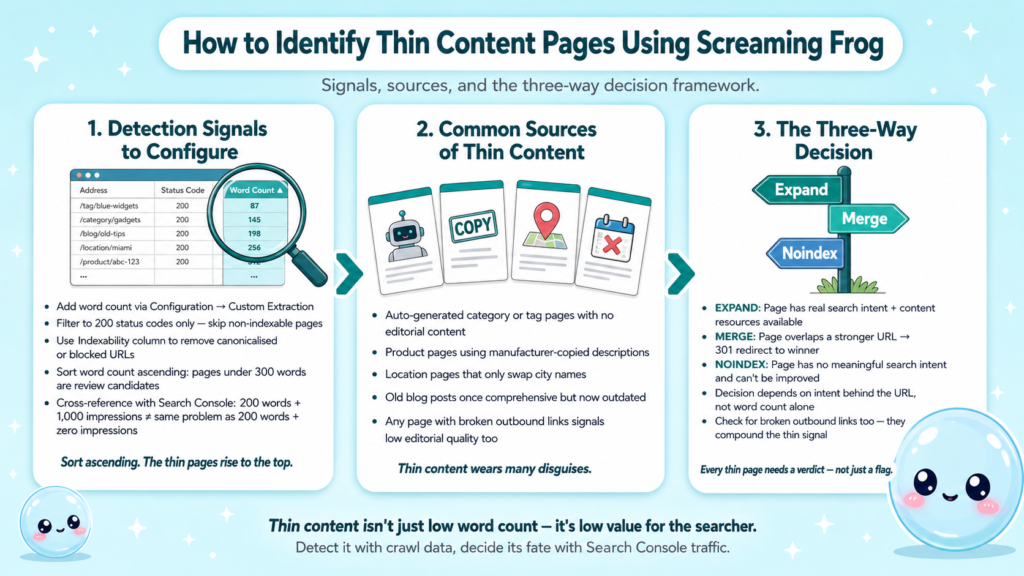
The most useful columns to expose are:
- Word Count: Go to Configuration → Custom → Extraction and add a custom extraction for word count using an XPath or CSS selector targeting the main content area.
- Response code: Filter to 200s only. Non-indexable pages don’t need content audits.
- Indexability: Use the Indexability column to filter out pages blocked by robots.txt or canonicals.
- Unique content: Sort by word count ascending after filtering. Pages under 300 words are candidates for thin content review.
Once you have your low-word-count list, cross-reference with Search Console performance data (which you’ve connected in the API setup step). A page with 200 words and 1,000 monthly impressions isn’t the same problem as a page with 200 words and zero impressions. Prioritise the former.
Thin content can come from several sources:
- Auto-generated category or tag pages with no editorial content
- Product pages with manufacturer-copied descriptions
- Location pages that only swap city names with no genuine local information
- Old blog posts that were once comprehensive but are now outdated
For each confirmed thin page, the decision is: expand it, merge it with a stronger URL (and 301 redirect), or noindex it. The right choice depends on whether the page has genuine search intent behind it and whether you have the content resources to make it substantive.
Broken link identification is part of this workflow too. A page that only links out to 404s signals low editorial quality, which compounds the thin content problem. Screaming Frog’s Response Codes tab catches all of these in one pass.
How to Crawl a Website With Screaming Frog and Analyse the Results for Technical On-Page Issues
Beyond the obvious metadata checks, Screaming Frog surfaces several technical on-page signals that directly affect how Google indexes and ranks your pages.
- Redirect chains and loops: Go to Response Codes → Redirection (3xx). Screaming Frog shows full redirect chains. A URL that redirects through three hops before resolving wastes crawl budget and dilutes link equity. The fix is to point every redirect directly to the final destination URL.
- Canonical tags: The Canonicals tab shows all self-referencing, non-self-referencing, and missing canonicals. A page with no canonical content on a site that has both www and non-www versions active is quietly creating duplicate content. A canonical pointing to a non-indexable URL is even worse, it’s telling Google to index a page it can’t access.
- Page depth analysis: Go to Crawl Overview → Crawl Depth. Pages buried more than three clicks from the homepage receive less crawl frequency and accumulate fewer internal links. If important pages are sitting at depth 6 or 7, your internal linking structure needs restructuring.
- Schema markup validation: Enable structured data rendering under Configuration → Spider → Rendering. The Structured Data tab then shows all schema types found on each URL and any validation errors. Broken schema doesn’t cause ranking penalties, but it does prevent rich result eligibility.
- Hreflang attributes: For multilingual sites, the Hreflang tab shows every tag and flags missing return tags (where language A links to language B but language B doesn’t link back). Google ignores hreflang sets with missing return tags entirely.
- XML sitemap generation: Once the crawl is complete, go to Sitemaps → XML Sitemap. Screaming Frog generates a clean sitemap of all indexable, 200-status pages. This replaces manual sitemap maintenance for most sites.
This is the full technical on-page picture. Pair it with an ongoing SEO workflow and you’re running a site that stays healthy between major audits, not one that only gets attention when rankings drop.
Screaming Frog Tutorial for SEO Managers and Agencies: Getting More From Every Crawl
For teams running audits at volume, raw Screaming Frog output isn’t enough. The real skill is building repeatable workflows that make crawl data usable for clients and actionable for developers.
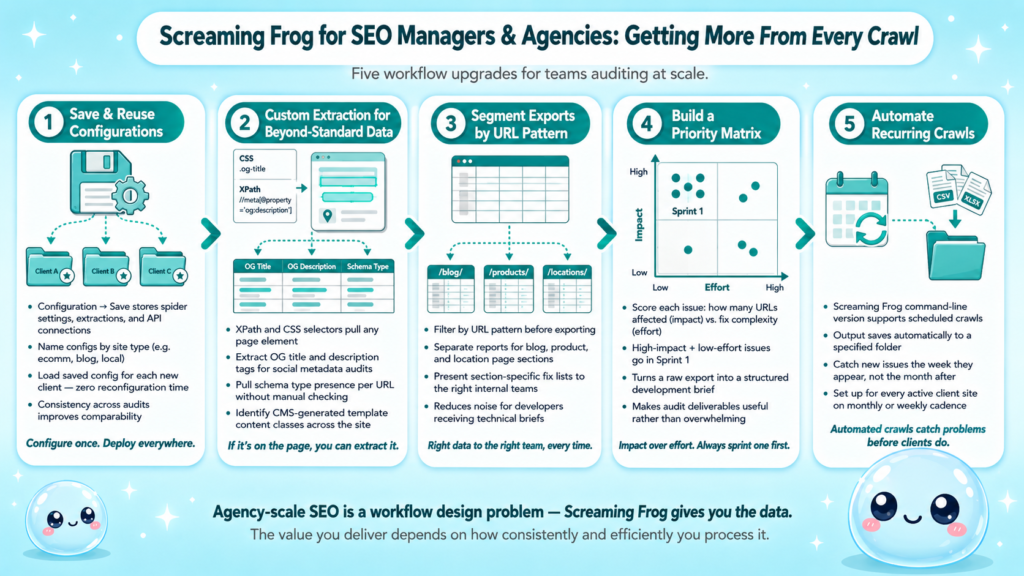
Save configurations: Under Configuration → Save, store your spider settings, custom extractions, and API connections as a named config. Load it for each new client site instead of reconfiguring from scratch.
Use custom extraction for beyond-standard data: XPath and CSS selectors let you pull any element from the page. I use custom extractions for:
- OG title and description tags (social sharing metadata)
- Schema type presence per URL
- Specific CMS-generated classes that indicate template content
Segment your export by URL pattern: For large sites with distinct sections (blog, product, location pages), filter by URL pattern and export separately. This lets you present section-specific fix lists to the right teams.
Build a priority matrix: After exporting, score each issue by impact (how many URLs affected) and effort (how hard the fix is). Issues that are high-impact and low-effort go in sprint one. This is the structure that makes a complete SEO report actually useful rather than overwhelming.
Automate recurring crawls: Screaming Frog’s command-line version supports scheduled crawls with output saved to a specified folder. Set this up for active client sites and you’ll catch new issues the week they appear rather than the month after.
The question of how to use Screaming Frog to improve on-page SEO at agency scale is ultimately a workflow design question. The tool gives you everything you need. The value you deliver depends on how consistently and efficiently you process what it shows you.
Conclusion
- Screaming Frog gives you a complete on-page diagnostic picture in a single crawl: titles, meta descriptions, canonicals, redirects, thin content, internal links, and schema.
- Connect Google Search Console to weight your fix list by actual traffic impact rather than treating every issue equally.
- Build repeatable configurations and export templates so each audit takes less time than the last.
- Use an AI analysis layer like sneo AI to go from a spreadsheet of issues to a clear, prioritised action plan based on your site’s real performance data.
Frequently Asked Questions
Q1: Is Screaming Frog free to use?
Yes, with limits. The free version crawls up to 500 URLs per session. The paid licence, priced under £200 per year, removes that cap and unlocks Google Search Console integration, JavaScript rendering, and scheduled crawls. For most agency use, the paid version is essential.
Q2: How often should I crawl my site with Screaming Frog?
Monthly for active sites, quarterly for stable ones. If you’re publishing content regularly or running technical changes, crawl after every major deployment. The command-line version supports automated scheduled crawls if you want continuous monitoring.
Q3: Can Screaming Frog detect duplicate content?
It can flag duplicate and near-duplicate page titles, meta descriptions, and H1 tags. For body content duplication, you need to cross-reference with near-duplicate detection tools or manually review pages that share similar word counts and topic focus.
Q4: What’s the difference between using Screaming Frog and Google Search Console?
Screaming Frog crawls your site from the outside, showing you what a crawler sees. Google Search Console shows you how Google has indexed your site and how users interact with it in search. They answer different questions and work best together.
Q5: How do I use Screaming Frog to find broken internal links?
Go to the Response Codes tab and filter by Client Error (4xx). Then click the Inlinks tab at the bottom of the screen. This shows every internal URL linking to that broken page, so you can fix the source links, not just the destination.
Q6: Does Screaming Frog support JavaScript-rendered sites?
Yes. Enable JavaScript rendering under Configuration → Spider → Rendering and select Googlebot. This makes Screaming Frog render pages the way Chrome does, which is essential for sites built on React, Vue, or other JS frameworks where content is loaded dynamically.