

I’ve had SEOs message me in a panic after accidentally removing the wrong property, and others who waited months before cleaning up a client’s account post-contract. Knowing exactly how to remove property from Google Search Console, and what that action actually does, saves you from both mistakes. This guide walks through every scenario: URL prefix properties, domain properties, client offboarding, and the data question everyone asks before they click delete.
TL;DR
- Removing a property in GSC hides it from your account view but does not delete Google’s index of your site.
- Historical search performance data becomes inaccessible once removed, so export first.
- Domain properties and URL prefix properties follow slightly different removal paths.
- You can re-add a property later, but you will not recover past data.
Can You Delete a Property in Google Search Console, and What Actually Happens?
This is the question I get most often, and the answer surprises people: you cannot permanently delete a property from Google Search Console in the way you’d delete a file. What you’re actually doing is removing access from your Google account. Google’s index of your URLs remains completely untouched.
Here’s what removing a property does and does not do:
- Removes it from your GSC dashboard: The property disappears from your account view immediately.
- Does not deindex your pages: Google keeps crawling and indexing your site regardless.
- Does not delete historical data permanently from Google’s systems: Google retains backend records, but you lose the ability to view them.
- Does not affect other verified owners: If a colleague or client also has the property verified, their access continues uninterrupted.
- Does not cancel sitemap submissions: Previously submitted sitemaps remain on record.
Critical: Once you remove a property and lose access, the search performance data, crawl coverage reports, and index management history associated with it are gone from your view. Google does not restore them.
According to Google Search Central’s property management documentation, removing a property only removes it from the current user’s Search Console account. The property itself, and any data Google holds about it, persists on Google’s end.
The practical implication: if you’re doing a holistic SEO audit across multiple properties, clean up your account only after you’ve exported every report you might need. Data loss from a hasty removal is entirely avoidable, but irreversible once done.
How to Remove a URL Prefix Property from GSC Step by Step
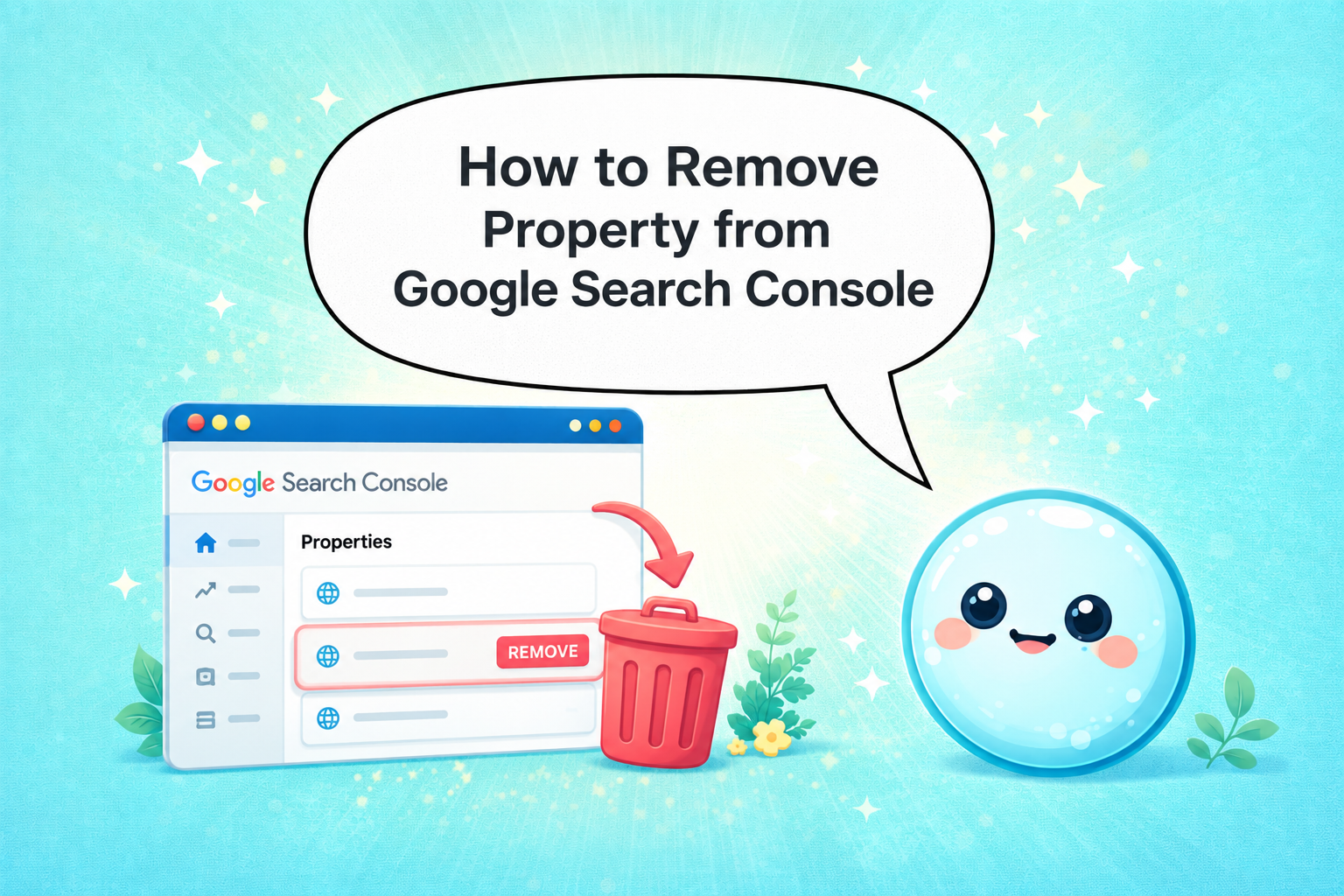
The URL prefix property type is the most common setup, especially for sites verified via HTML tag, Google Analytics integration, or verification token. Here’s the exact removal process:
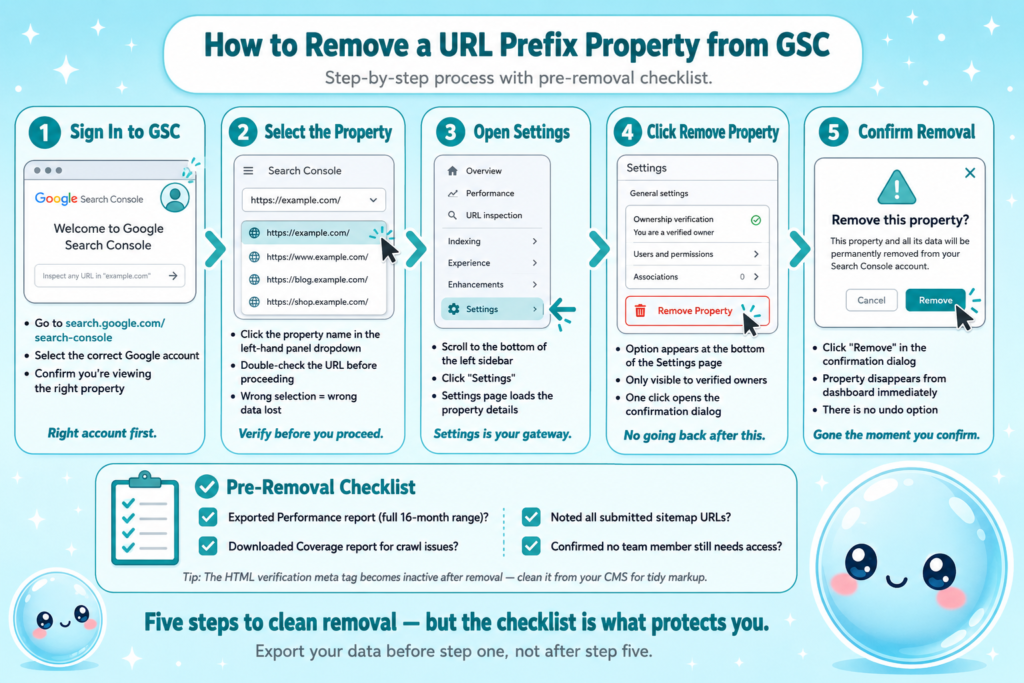
- Sign in to Google Search Console: Go to search.google.com/search-console and select the correct Google account.
- Select the property: Click the property name in the left-hand panel dropdown.
- Open Property Settings: Scroll down the left sidebar and click “Settings.”
- Click “Remove Property”: This option appears at the bottom of the Settings page under the property details section.
- Confirm removal: A confirmation dialog appears. Click “Remove” to finalise.
The property disappears from your dashboard immediately. There is no undo.
Before you click confirm, check these:
- Have you exported the Performance report for the date range you need?
- Have you downloaded the Coverage report to identify any known crawl issues?
- Have you noted which sitemaps were submitted so you can resubmit if you re-add the property later?
- Does any team member or client still need access?
For URL prefix properties verified via HTML tag, removing the property from your account does not automatically remove the verification token from your site’s head element. That meta tag just becomes inactive. You can leave it or remove it from your CMS, it causes no harm either way, but leaving orphaned verification tokens in your markup is sloppy practice I’d recommend cleaning up.
How to Remove a Domain Property from Google Search Console Step by Step
Domain properties cover all subdomains and protocols under a single root (e.g., example.com covers www.example.com, blog.example.com, and both HTTP and HTTPS variants). They’re verified exclusively via DNS record, which makes the removal process slightly different in practice.
- Open Search Console and select the domain property: Domain properties display without the https:// prefix in the panel.
- Go to Settings: Same path as a URL prefix property, left sidebar, bottom of the list.
- Click “Remove Property”: Confirm in the dialog that appears.
- Decide on the DNS record: After removal, your DNS TXT record for Google verification still exists in your domain registrar. It does nothing now, but if you want a clean DNS setup, log into your registrar and delete the TXT record that starts with google-site-verification=.
Domain vs. URL prefix removal at a glance:
| Factor | URL Prefix Property | Domain Property |
| Verification method | HTML tag, GA, DNS, or file | DNS record only |
| Scope | Single protocol + subdomain | All protocols + subdomains |
| Leftover artifact after removal | Inactive meta tag in head | Inactive TXT record at registrar |
| Re-verification if re-added | Any supported method | DNS only |
If you’re offboarding a client after a site migration, confirming which property type they use before starting the process saves confusion. I’ve seen agencies remove a URL prefix property while the domain property (with the same site’s data) remained active and shared with the client, a messy situation that requires a second round of cleanup.
Will You Lose Historical Data If You Remove a Property from Google Search Console?
Yes, and this is the part most people skip over until it’s too late. When you remove a property, you lose access to all of that property’s historical data inside your account. That includes:
- Search performance reports (clicks, impressions, CTR, average position)
- Index coverage history
- Sitemap submission records
- Core Web Vitals data linked to the property
- Any manual actions or security issues logged against it
Export before you remove, always. Here’s what to pull:
- Performance data: Go to Performance > Search Results, set the date range to the maximum (16 months), and export to CSV or Google Sheets.
- Coverage report: Export the indexed and non-indexed URL lists from the Indexing > Pages section.
- Sitemaps: Screenshot or note all submitted sitemap URLs.
If you use sneo.ai alongside GSC, you can query historical patterns before removing the property so nothing important slips through. Understanding what average position in Google Search Console means for your key pages, for instance, is context worth preserving before any account restructure.
One nuance worth knowing: if another verified user (owner or full user) retains access to the property after you remove it from your account, the data remains accessible through their account. Coordinate with your team so someone retains access if ongoing tracking matters.
How to Remove a Client’s Website from Google Search Console After a Contract Ends
Client offboarding is where I see the most avoidable mistakes. The cleanest process depends on whether you were added as a verified owner, a delegated owner, or a restricted user.
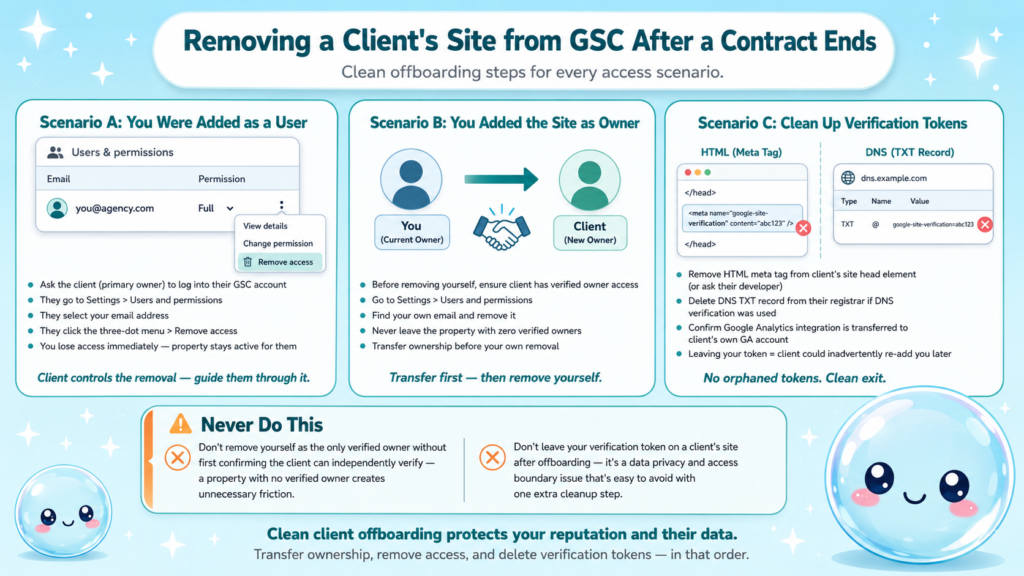
If you were added as a user (not the primary owner):
- Have the client (or primary owner) log in to their GSC account.
- Ask them to go to Settings > Users and permissions.
- They select your email address and click the three-dot menu > Remove access.
If you added the site yourself and are listed as an owner:
- Before removing yourself, either transfer ownership to the client or ensure they have verified owner access.
- Go to Settings > Users and permissions, find your own email, and remove it.
Never remove yourself as the only verified owner without first ensuring the client can independently verify. A property with no verified owner is recoverable, but it creates unnecessary friction for the client.
If you installed the verification token on their site:
- Remove the HTML tag from their site’s head element, or ask their developer to do so.
- Delete the DNS TXT record from their registrar if you used DNS verification.
- Confirm Google Analytics integration is transferred to their own GA account if applicable.
This is part of ongoing SEO hygiene that protects both you and the client. Leaving your verification on a client’s site means they could re-add you to their property later, intentionally or not, a minor data privacy and access boundary issue worth avoiding.
Difference Between Removing and Unverifying a Property in Search Console
These two actions are related but not the same, and mixing them up causes real problems.
Removing a property means you go into GSC and explicitly remove it from your account dashboard. The effect is immediate and clean from your perspective, it’s gone from your view.
Unverifying a property means the verification method itself is broken or deleted. For example:
- You delete the HTML meta tag from your site’s head element.
- You remove the DNS TXT record at your registrar.
- The Google Analytics integration is disconnected.
When verification breaks, GSC eventually loses confirmed ownership on its end and may flag the property as unverified. This is different from removing it cleanly, an unverified property lingers in your account with a warning rather than disappearing.
| Action | What changes in GSC | What changes on-site | Data access |
| Remove property | Property leaves your dashboard | Nothing | Lost from your account |
| Delete verification token | Property becomes unverified, stays in dashboard | Meta tag or DNS record removed | Temporarily accessible until GSC detects the change |
| Both | Property leaves dashboard, token gone | Token removed | Lost from your account |
The cleanest outcome: remove the property in GSC first, then clean up the verification token from the site or DNS. Doing it in that order keeps your account tidy and ensures no gap where the property shows as unverified-but-not-removed.
Understanding this distinction also matters when you’re considering why an SEO audit is important before any major account restructure, unverified properties with stale data can skew what you think you know about a site’s search health.
Conclusion
- Knowing how to remove property from Google Search Console correctly protects your data and your client relationships.
- Removal hides the property from your account, it never deindexes your site or deletes Google’s records.
- Always export Performance and Coverage reports before removing any property.
- For client offboarding, confirm verified ownership transfers before removing your own access.
- Use sneo.ai to query and preserve insights before any account restructure.
Frequently Asked Questions
Q1: Does removing a property from Google Search Console deindex my website?
No. Removing a property only removes it from your GSC account view. Google continues crawling and indexing your pages as normal. To actually remove URLs from Google’s index, you need to use the URL Removal tool or update your robots.txt before removing the property.
Q2: Can I re-add a property after removing it from Search Console?
Yes, you can re-add any property by going through the standard verification process again. However, the historical data from before the removal will not return. You start fresh from the date of re-verification, which is why exporting data first is essential.
Q3: How long does Google Search Console keep data after I remove a property?
Once you remove a property, you immediately lose access to its data in your account. Google retains backend data for its own systems, but there is no official mechanism for users to retrieve it after removal. Export everything you need before removing.
Q4: What is the difference between a domain property and a URL prefix property in GSC?
A domain property covers all subdomains and protocols under one root domain, verified only by DNS record. A URL prefix property covers a single protocol and subdomain combination and supports multiple verification methods including HTML tag, Google Analytics, and DNS.
Q5: How do I remove only one user’s access without removing the whole property?
Go to Settings > Users and permissions inside the property. Find the user’s email, click the three-dot menu next to their name, and select “Remove access.” The property stays active for all remaining users and owners.
Q6: Should I remove old properties from Search Console if I no longer manage those sites?
Yes. Keeping unmanaged properties in your account creates clutter, potential data confusion, and unnecessary access to sites you no longer represent. Clean up old properties as part of your standard client offboarding and account hygiene process.