

If you’ve wrapped up a client project, migrated a domain, or simply need to clean up your property list, knowing how to remove website from google search console correctly matters more than most SEOs realise. Do it wrong and you lose historical data you’ll wish you had later. Do it right and your account stays clean without affecting rankings. I’ve walked dozens of site owners through this process, and this guide covers every scenario you’re likely to hit.
TL;DR
- Removing a property from Google Search Console deletes your access to that site’s data, not the site’s index presence.
- Rankings are unaffected by removing a property.
- Export your performance report and index coverage data before you remove anything.
- To re-add a site later, you simply reverify ownership.
What Actually Happens When You Remove a Property From Search Console
Before touching any settings, understand what removal actually does and doesn’t do.
Removing a property means Google Search Console stops showing you data for that site. It does not deindex the website, stop crawling it, or harm its search appearance in any way. Google’s crawler operates independently of whether you have a verified property in your account.
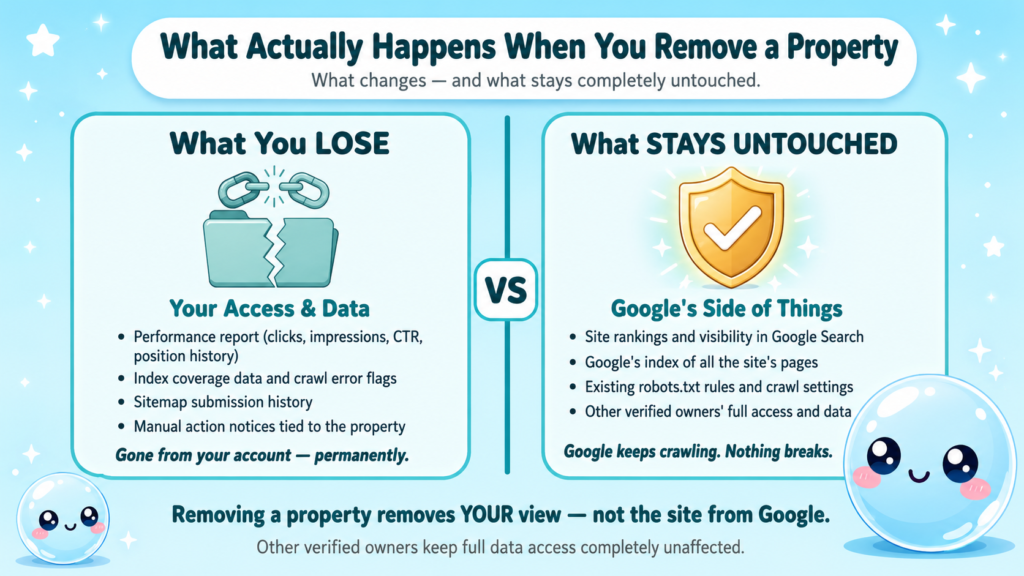
What you lose immediately:
- Access to the performance report (clicks, impressions, CTR, position history)
- Index coverage data and any flagged crawl errors
- Sitemap submission history
- Any manual action notices tied to that property
What stays completely untouched:
- The site’s rankings and visibility in Google Search
- Google’s index of the site’s pages
- Any robots.txt rules or crawl settings already in place
- Other verified owners’ access to the same property
Removing a property only removes your view. If another user has Owner-level access, the property continues to exist in their account with full history intact.
This distinction matters when you’re offboarding a client. If they have their own Google account with Owner access, their data survives your removal entirely. The Google Search Console help documentation confirms that each verified user manages their own access independently.
One thing I always do before any removal: export a full CSV of the performance report going back 16 months. Once you remove the property from your account, that data is gone for you. For ongoing SEO work, having that baseline in a spreadsheet can save you months of context-rebuilding later.
How to Remove a Website From Google Search Console Step by Step
This is the core process for removing a standard property from your account.
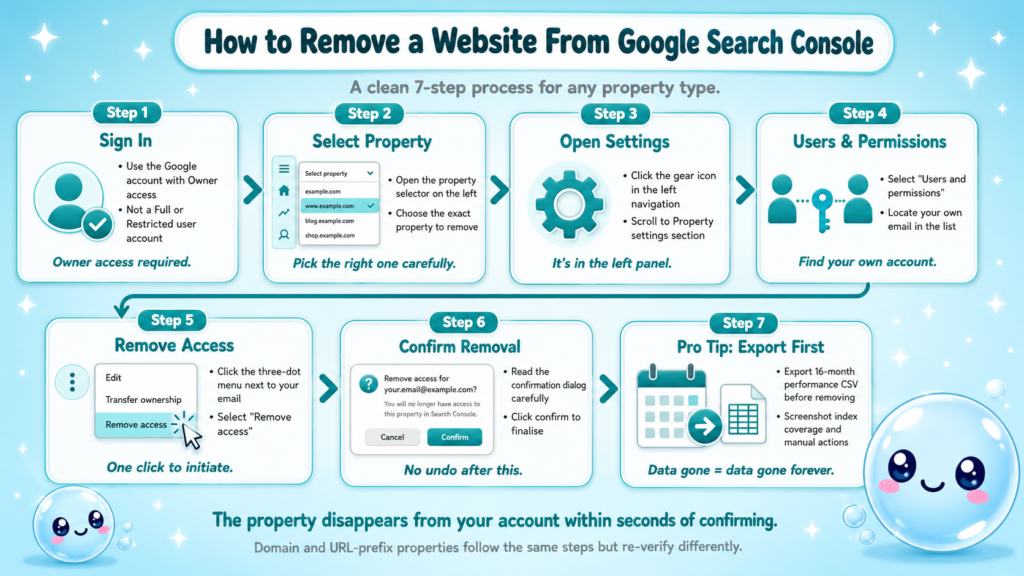
- Sign in to Google Search Console with the Google account that has Owner access.
- Select the property you want to remove from the left-hand property selector.
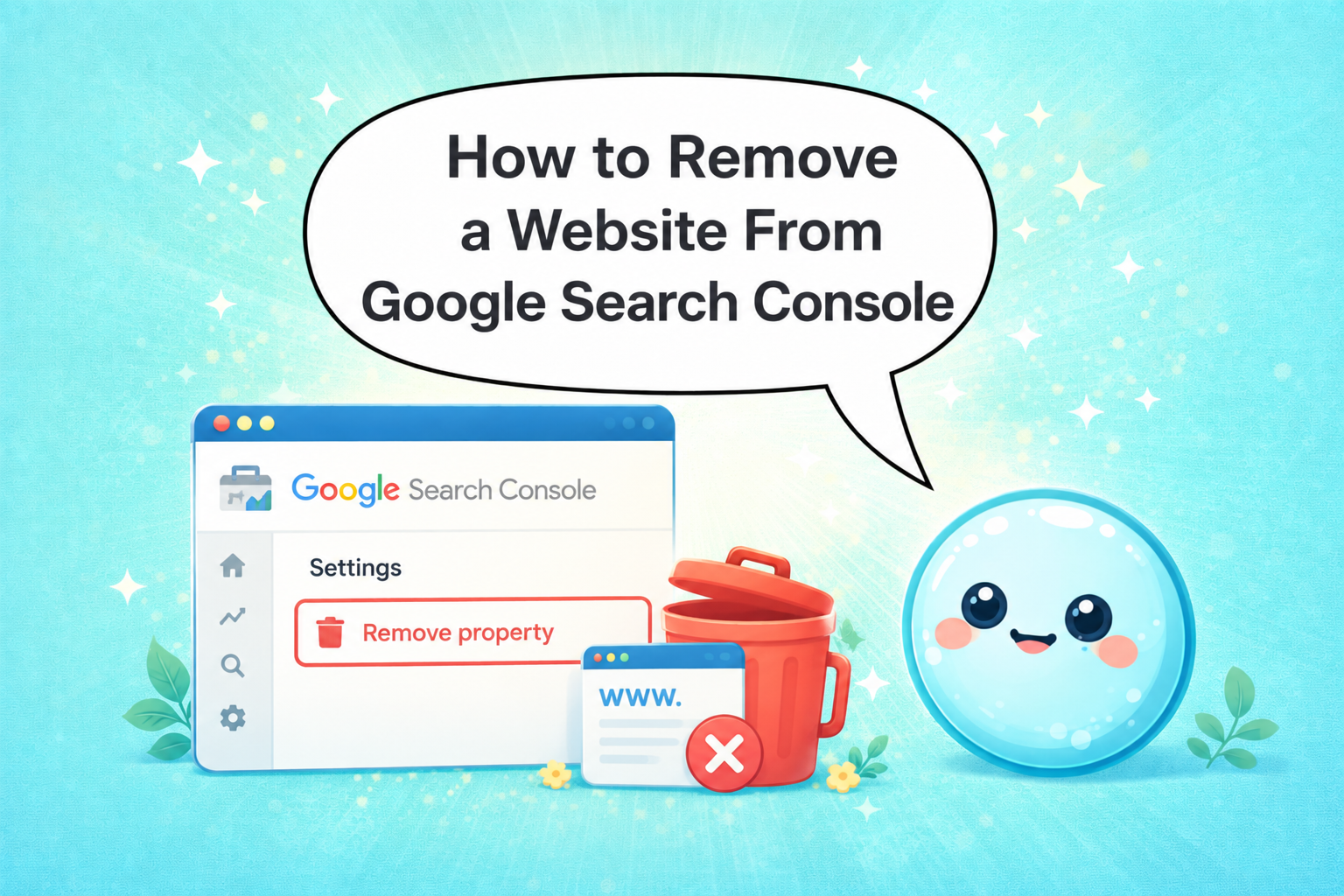
- Click the gear icon (Settings) in the left navigation panel.
- Select “Users and permissions” under the Property settings section.
- Find your own email address in the user list.
- Click the three-dot menu next to your email and select “Remove access.”
- Confirm the removal in the dialog box.
That’s the complete process. The property disappears from your account within seconds.
For Domain properties vs. URL-prefix properties: The removal steps are identical, but the re-verification process differs. A Domain property requires DNS record access to re-verify, while a URL-prefix property can be re-verified via HTML tag, Google Analytics integration, or a verification file. If you’re removing a Domain property for a client, confirm they have DNS access before you remove your own access.
If you are the only Owner: Google will warn you that removing yourself as the sole Owner means no one has Owner access to the property. The property doesn’t disappear from Google’s systems, but it becomes an unmanaged web property. Any Restricted or Full users already added will lose meaningful management ability. In this case, either transfer ownership to the client first or ensure they independently verify before you remove yourself.
If you accidentally remove the wrong property: Re-add it immediately using the same verification method you used originally. HTML tag verification and DNS record verification both restore access quickly, typically within minutes of Google recrawling or checking the DNS.
How to Remove a Client Website From Your Search Console Account
Offboarding a client site is one of the most common reasons SEO freelancers and agencies need this process. I’ve seen agencies skip the handover step and leave clients without Owner access to their own property. Don’t do that.
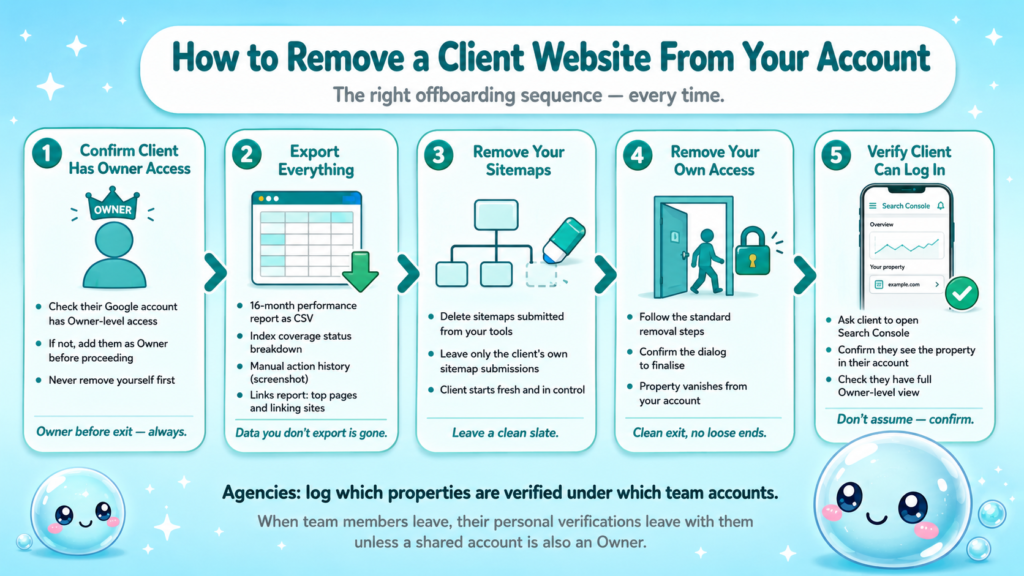
The correct offboarding sequence:
- Confirm the client has their own Google account with at least Owner-level access to the property. If they don’t, add them as an Owner before you do anything else.
- Export all data you need: performance reports, index coverage, any manual action history, sitemap submission records.
- Remove any sitemaps you submitted on the client’s behalf if they were from your tools or CDN, so the client starts clean.
- Remove your own access using the steps above.
- Confirm with the client that they can log in and see the property in their own account.
For agencies managing multiple client properties, keeping a shared internal log of which properties you’ve verified under which team member’s accounts is essential for SEO management. When team members leave, those personal verifications leave with them unless you’ve added the agency’s shared account as a co-Owner.
Google account permissions levels in Search Console:
| Permission Level | Can View Data | Can Add Users | Can Remove Property |
| Owner (verified) | Yes | Yes | Yes |
| Full user | Yes | No | No |
| Restricted user | Limited | No | No |
Delegated ownership through a Google Analytics integration counts as an “unverified owner” and carries slightly different permissions than direct DNS or HTML tag verification. If the client originally verified via Google Analytics, make sure their Analytics account remains active and linked, or shift them to direct verification before handover.
Will Removing a Site From Google Search Console Affect Rankings?
This is the question I get most from site owners who are nervous about touching their Search Console setup. The short answer is no, but the reasoning matters.
Google’s crawl settings and indexing decisions are driven by the site’s robots.txt, meta robots tags, HTTP headers, and the quality of the content itself, not by whether a verified property exists in Search Console. Search Console is a reporting and communication interface. It doesn’t control crawling.
Removing a property has zero effect on:
- Keyword rankings
- Crawl frequency
- Index status of any page
- Structured data processing
- Any search appearance features like sitelinks or rich results
What you do lose is the ability to receive manual action notifications, submit sitemaps, or use the URL inspection tool. For an active site, that’s a significant operational gap. For a site you’re genuinely handing off or shutting down, it’s irrelevant.
If your goal is to actually deindex a website (remove pages from Google’s index), removing a Search Console property is the wrong tool. You would need to use the URL removal tool inside Search Console while you still have access, update the robots.txt to block crawling, or return a 404 or 410 HTTP status from the server. Understanding what crawling in SEO actually controls is essential context before making any of these decisions.
How to Remove a Property Without Losing Your Historical Data
Data preservation is the part of this process most guides skip. Once you remove a property from your account, the data doesn’t transfer to anyone. It simply becomes inaccessible from your login.
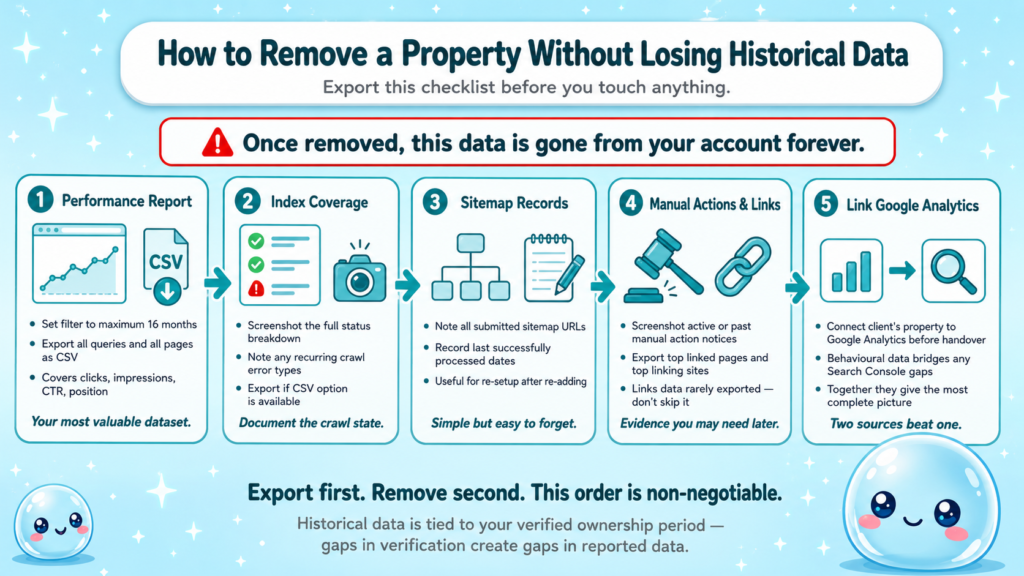
Before removing any property, export these:
- Performance report: Filter by 16 months, export all queries and pages as CSV.
- Index coverage: Screenshot or export the current status breakdown.
- Sitemaps: Note which sitemaps were submitted and their last processed dates.
- Manual actions: Screenshot any active or past manual action notices.
- Links report: Export top linked pages and top linking sites for your records.
For clients who want continuity, connecting their property to Google Analytics before handover means they retain behavioural data even if Search Console data has gaps. The two platforms together give a more complete picture than either alone. This connects directly to understanding what a thorough SEO report should include so your final deliverable to the client has everything documented.
If you use sneo AI for SEO analysis, connecting Search Console before removal lets you snapshot current performance, identify which pages need attention, and hand off a concrete action list. I built sneo specifically so that questions like “why did traffic drop last month?” have a direct answer tied to real site data rather than guesswork.
How to Remove a Website From Search Console and Add It Back Later
Sometimes removal is temporary: a site migration, a domain switch, or a client returning after a gap. Re-adding a property is straightforward, but the method depends on which property type you’re using.
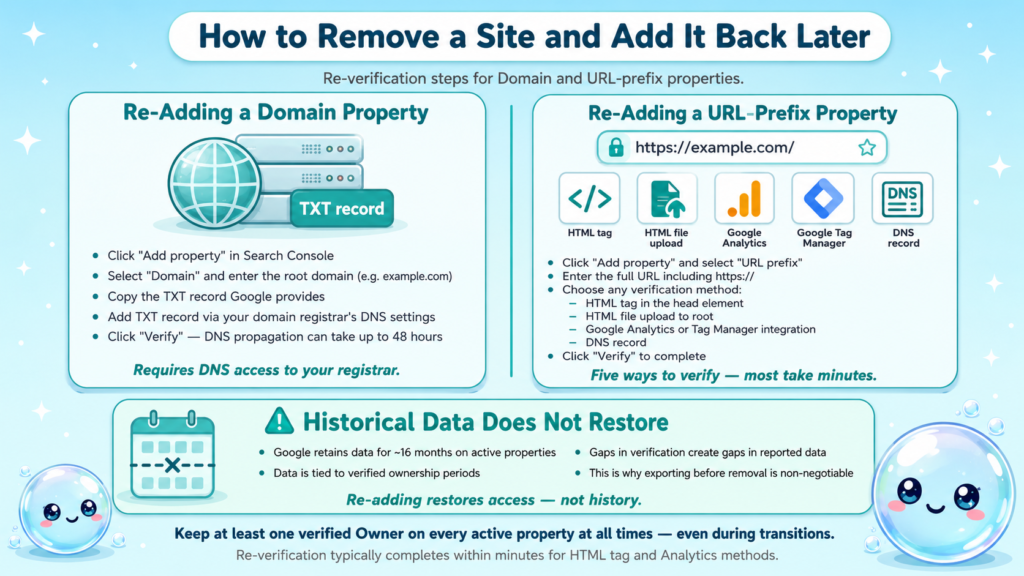
To add a Domain property back:
- In Search Console, click “Add property.”
- Select “Domain” and enter the root domain (e.g., example.com).
- Copy the TXT record Google provides.
- Add it to your DNS settings via your domain registrar.
- Click “Verify” in Search Console. DNS propagation can take up to 48 hours, though it’s usually faster.
To add a URL-prefix property back:
- Select “URL prefix” and enter the full URL including protocol (https://example.com/).
- Choose a verification method: HTML tag in the head element, HTML file upload, Google Analytics integration, Google Tag Manager, or DNS record.
- Complete the verification step and click “Verify.”
Historical data from before your removal is not restored when you re-add the property. Google Search Console retains data for roughly 16 months, but that data is tied to verified ownership periods. Gaps in verification may create gaps in reported data. This is another reason exporting before removal is non-negotiable.
For sites that are part of a holistic SEO strategy with active monitoring, I recommend keeping at least one verified Owner on the property at all times, even during transitions.
Conclusion
- Removing a property from Search Console removes your access to data, not the site from Google’s index.
- Rankings, crawling, and search appearance are completely unaffected by property removal.
- Always export performance data and confirm client ownership before removing yourself.
- Re-adding a property is straightforward but does not restore historical data.
If you’re managing multiple client properties or running regular SEO audits, keeping your Search Console account organised and handing off client sites correctly is part of professional delivery. Sneo AI connects directly to your Search Console data to help you answer questions like these faster.
Frequently Asked Questions
Q1: Does removing a property from Search Console deindex my website?
No. Removing a property only removes your ability to see and manage data for that site. Google continues crawling, indexing, and ranking the site normally. To deindex pages, you need to use the URL removal tool or modify your robots.txt while you still have access.
Q2: Can I delete a Search Console account entirely?
You can remove all properties from your account and stop using it, but Google accounts are managed through Google Account settings, not Search Console. Deleting the associated Google account would end all Search Console access tied to it.
Q3: What is the difference between removing a property and revoking user access?
Removing a property means you lose your own access. Revoking user access means you remove another user’s access while keeping your own. Both are done through Users and permissions settings, but they serve different purposes.
Q4: Will my client lose their data if I remove my access?
Only if you are the sole verified Owner. If the client has their own Owner-level access, their data remains fully intact after you remove yourself. Always verify this before removing your access.
Q5: How long does Google keep Search Console data after a property is removed?
Google retains performance data for up to 16 months for active properties. Once you lose access, you cannot retrieve that data. Export everything you need before initiating removal.
Q6: Can I transfer Search Console ownership to a client directly?
There is no direct “transfer ownership” feature. The correct process is to add the client as an Owner first using their Google account, confirm they have access, then remove your own access. Both steps must happen in the right order.