

Sharing Google Search Console access the wrong way costs you time, data security, and occasionally a panicked call from a client who just lost access to their own property. I’ve made every mistake in the book, and I’ve helped hundreds of site owners avoid the same ones. This GSC setup guide walks you through adding users correctly, choosing the right permission level, and keeping your data safe, whether you’re an SEO freelancer handing off to a client or an agency manager onboarding a new analyst.
TL;DR
- Only property owners can add users; restricted users cannot.
- There are three permission levels: owner, full user, and restricted user.
- Never share your Google login. Add collaborators as separate users.
- Use a domain property for full coverage; URL prefix for partial or subdomain access.
How to Add a User to Google Search Console (Step-by-Step)
This is the question I get most often, so I’ll answer it first. The process takes under two minutes once you know where to look.
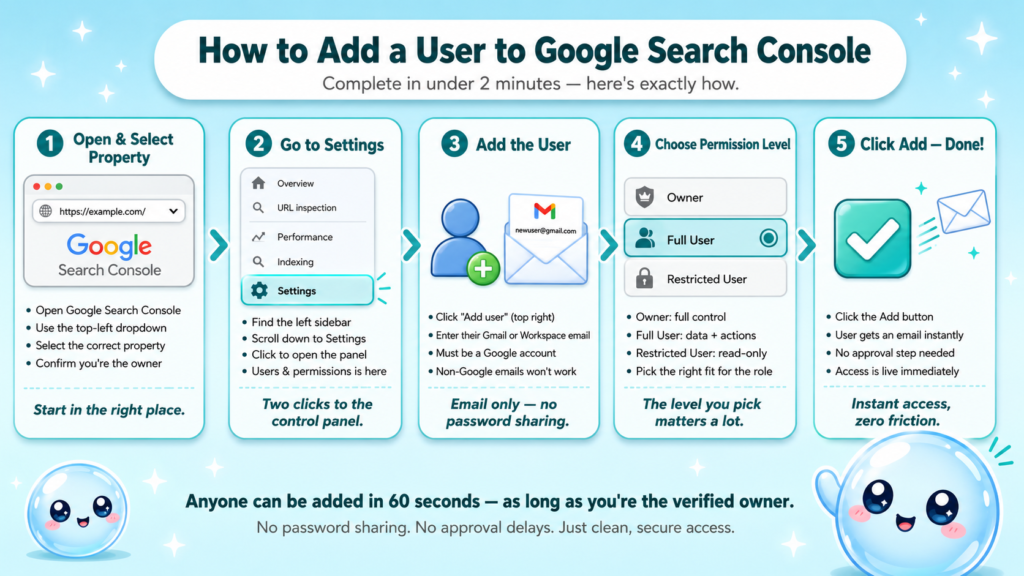
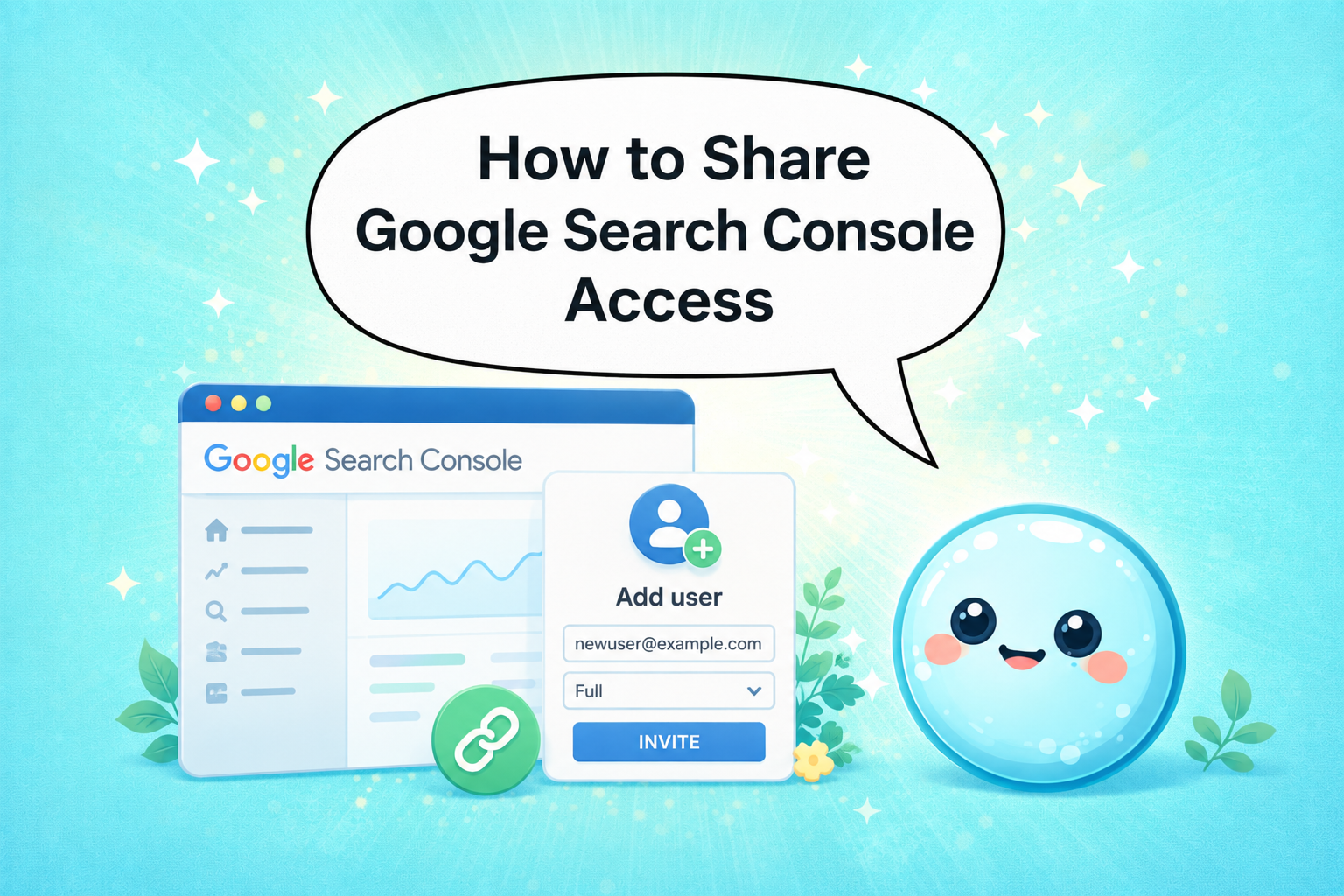
- Open Google Search Console and select your property from the top-left dropdown.
- Scroll to Settings in the left sidebar.
- Click Users and permissions.
- Click the Add user button (top right).
- Enter the Gmail or Google Workspace address of the person you’re adding.
- Select their permission level: Owner, Full User, or Restricted User.
- Click Add.
The invited user receives an email and immediately gains access at the level you set. There is no approval step on their end beyond signing in with that Google account.
A few things to watch before you click Add:
- The email must be a Google account. A non-Google business email will not work unless it’s a Google Workspace account.
- You must be a verified owner of the property to add users. Full users and restricted users cannot manage permissions.
- Delegated owners can also add users, but they cannot add new owners.
You can add multiple users to a single property. There is no documented cap on the number of users, so agencies can add their full team without hitting a ceiling.
Once a user is added, they can access the search performance report, index coverage report, Core Web Vitals data, crawl errors, and everything else within the property. The only thing they cannot do (at the Full User level) is manage other users or verify new properties.
For a new website, you’ll need to verify the property before any of this applies. I cover that in detail later in this article. If you’re also managing analytics alongside search data, connecting Google Analytics and Google Tag Manager to the same property gives you a much richer picture of how organic traffic behaves after the click.
GSC Owner vs Full User vs Restricted User: What’s the Difference?
Understanding permission levels is the most overlooked part of any GSC setup guide. Getting this wrong either exposes sensitive data or blocks your team from doing their job.
| Permission Level | Can View Data | Can Take Actions (submit sitemaps, etc.) | Can Manage Users | Can Remove Property |
| Owner (Verified) | Yes | Yes | Yes | Yes |
| Owner (Delegated) | Yes | Yes | Yes (except add owners) | No |
| Full User | Yes | Yes | No | No |
| Restricted User | Partial | No | No | No |
Owner (Verified): This is whoever completed the DNS verification or HTML tag verification during property setup. They have full control, including the ability to remove the property entirely.
Owner (Delegated): An owner who was granted ownership by a verified owner. This is the level I recommend for agency leads or senior SEO managers, as it allows them to manage day-to-day access without being able to nuke the property.
Full User: The right level for most SEO analysts and agency team members. They see all data and can submit XML sitemaps, request indexing, and use the Search Console API for automated reporting, but they cannot touch user permissions.
Restricted User: A read-only role that shows only the search performance report and a handful of other views. Use this for clients who want to peek at rankings but shouldn’t be touching anything, or for stakeholders in a reporting review.
For ongoing SEO work, I almost always assign Full User to my working team and reserve Delegated Owner for the account lead.
What Permissions Should You Give an SEO Agency in GSC?
This is a question I answer for clients almost weekly. The short answer: Full User for analysts, Delegated Owner for the agency account lead, and you keep the Verified Owner status yourself.
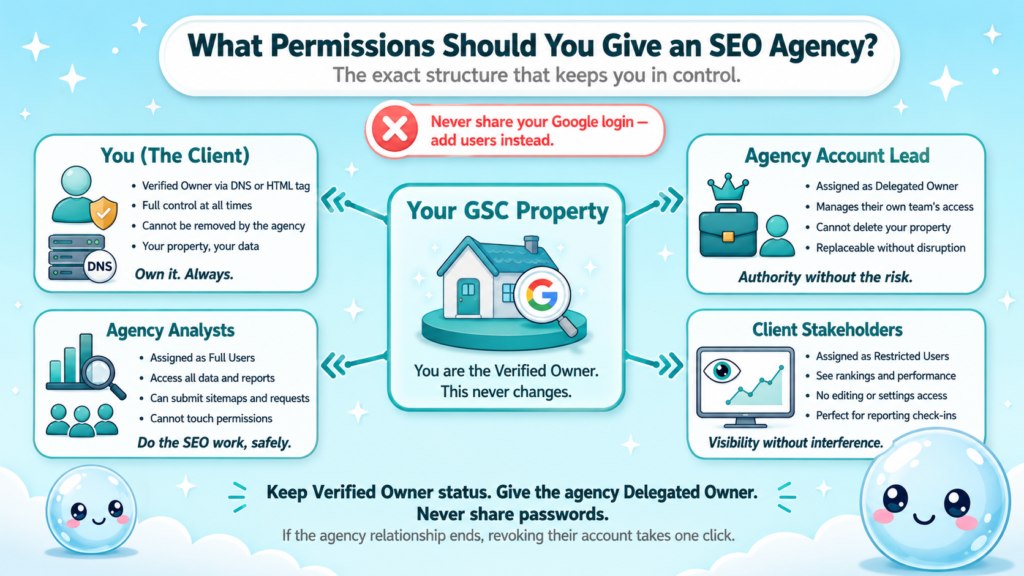
Here is why this matters. If you give an agency Verified Owner access using your account and they leave, they take that verified connection with them. If the agency goes through staff changes, you can revoke individual accounts without disrupting the property.
The setup I recommend for agency relationships:
- Client (you): Verified Owner via DNS or HTML tag.
- Agency account lead: Delegated Owner so they can manage their own team’s access.
- Agency analysts: Full User.
- Client stakeholders: Restricted User if they want visibility without edit rights.
Never share your Google login credentials. Adding someone as a user takes 60 seconds and is the secure, supported method. Sharing passwords violates Google’s terms and creates a support nightmare if anything goes wrong.
One thing agencies often overlook: if your property is a domain property (covers all subdomains and protocols), the agency sees everything. If you only want them seeing data for a specific subdomain or directory, use a URL prefix property scoped to that path and add them there.
Data delegation works cleanly in both directions. You can also grant access to Google Business Profile and Google Analytics from within their respective platforms, and each service manages permissions independently.
How to Set Up Google Search Console for a New Website
If you’re starting from scratch, here is the full property setup sequence I walk new clients through. Verification is the gatekeeper: nothing else works until this step is done.
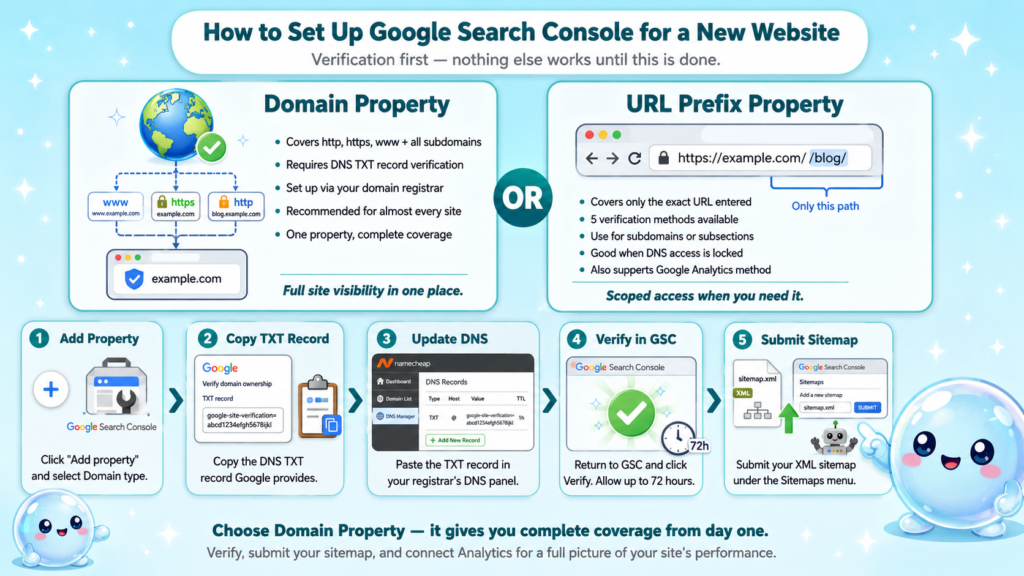
Choose your property type first:
- Domain property: Covers http, https, www, and all subdomains. Requires DNS TXT record verification through your domain registrar. I recommend this for almost every site.
- URL prefix property: Covers only the exact URL prefix you enter. Supports five verification methods (HTML tag, Google Analytics, Google Tag Manager, HTML file upload, DNS). Use this for subdomains, subsections, or when DNS access is locked.
Step-by-step for a domain property:
- Go to Search Console and click Add property.
- Select Domain and enter your root domain (e.g., example.com, no www).
- Copy the DNS TXT record Google provides.
- Log into your domain registrar (Namecheap, GoDaddy, Cloudflare, etc.).
- Add the TXT record in your DNS settings.
- Return to Search Console and click Verify. DNS propagation can take up to 72 hours, but usually resolves within a few hours.
Once verified, submit your XML sitemap under Sitemaps in the left sidebar. Also review your robots.txt file under Settings > robots.txt to confirm nothing is accidentally blocking Googlebot.
From here, connect Google Analytics and Google Tag Manager if they are not already linked. This unlocks richer data within both platforms and makes your SEO reporting far more actionable.
If you also run a local business, connect Google Business Profile to the same Google account for consistent data across Google’s ecosystem.
GSC User Permissions Explained for SEO Managers
Managing a team means thinking about permissions as policy, not just access. Here is how I structure permissions across the accounts I manage.
Principle of least privilege: Give each person only the access they need to do their job. A content writer who needs to check which pages are indexed does not need Full User; Restricted User is enough.
Audit your users quarterly. Go to Settings > Users and permissions and review who has access. Former contractors, old agency accounts, and ex-employees accumulate silently. Revoke anything unused.
Use Google Workspace accounts for agencies. A personal Gmail is tied to an individual. A Workspace account (e.g., analyst@agency.com) can be transferred or disabled centrally if the person leaves, without losing the connection to your property.
Document your permission structure. I keep a simple spreadsheet: property, account email, permission level, date added, reason. Takes five minutes to maintain and saves hours when something breaks.
For what an SEO report should include, the search performance report inside GSC is the baseline. Restricted users can pull this data; full users can also cross-reference it with Core Web Vitals and the index coverage report.
One more thing worth mentioning: if you use Bing Webmaster Tools, it has its own separate user management. Access granted in GSC does not carry over to Bing, so add team members there separately if Bing traffic matters for your site.
How to Give a Client GSC Access Without Sharing Your Login
This comes up constantly in agency work. A client wants visibility into their own data, but you do not want to hand over your agency Google account. The answer is straightforward: add the client as a user on their own property.
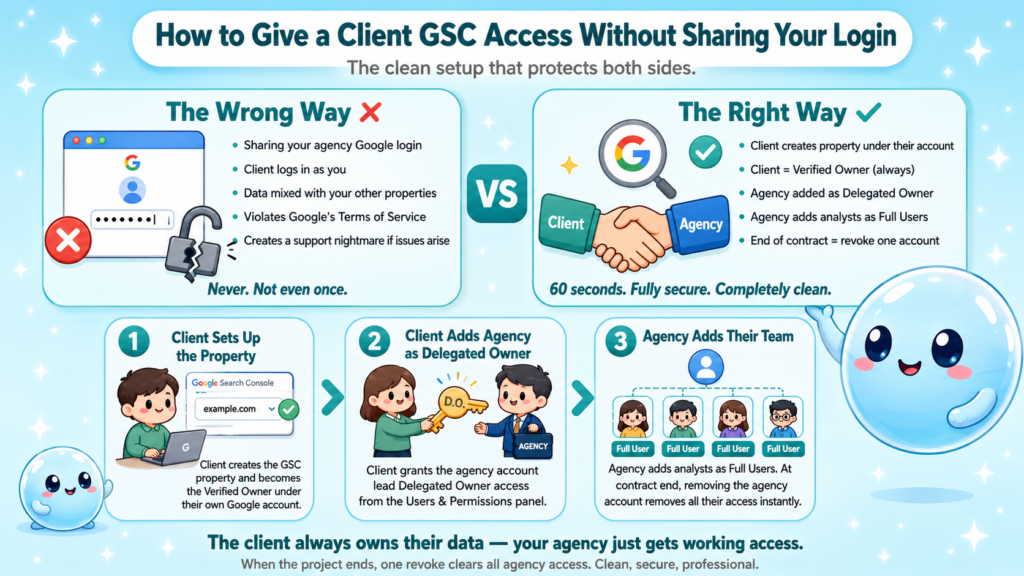
If you set up the property under your agency account (which I recommend against), the fix is to add the client as a Delegated Owner so they have full access and can eventually take over the Verified Owner role if needed.
The cleanest setup is:
- Ask the client to create the property under their own Google account, making them the Verified Owner.
- Have them add your agency account as a Delegated Owner.
- Your agency adds individual team members as Full Users or Restricted Users.
This way the client owns their data, your team has the access they need, and removing the agency at the end of a contract is a one-step process: revoke the agency account.
For clients who are not technical, I walk them through the process using a screen share. The Google Search Central documentation on managing users is also a solid reference to send them directly.
As an alternative or complement to GSC, tools like sneo.ai connect to your Search Console data and let you ask plain-English questions about your site’s performance without digging through the interface manually.
Conclusion
Sharing Google Search Console access correctly is a small process with outsized consequences for your site’s security and your team’s efficiency.
- Keep Verified Owner status with the site owner, always.
- Assign Delegated Owner to agency leads; Full User to working analysts.
- Never share login credentials; use the Users and permissions panel instead.
- Review your access list quarterly and remove stale accounts.
Done right, this GSC setup guide approach keeps your data secure while giving every stakeholder exactly what they need.
Frequently Asked Questions
Q1: Can I add multiple users to Google Search Console?
Yes. There is no documented limit on the number of users per property. You can add your full agency team, client stakeholders, and any contractors as separate users, each with their own permission level.
Q2: What is the difference between a verified owner and a delegated owner in GSC?
A verified owner completed DNS or HTML verification and has full control including deleting the property. A delegated owner was granted ownership by a verified owner and can manage users but cannot add new verified owners or remove the property.
Q3: Can a restricted user submit a sitemap or request indexing?
No. Restricted users have read-only access limited to the search performance report and a few other views. Submitting XML sitemaps, requesting indexing, or changing any settings requires Full User or Owner access.
Q4: How do I remove someone’s access to Google Search Console?
Go to Settings > Users and permissions, find the user, click the three-dot menu next to their name, and select Remove access. The change takes effect immediately.
Q5: Does GSC access automatically carry over to Google Analytics?
No. Google Analytics, Google Tag Manager, and Google Search Console each manage permissions independently. Granting access in one platform does not affect the others.
Q6: What should I do if I lose access to my own Google Search Console property?
If you still control the domain, re-verify ownership using a DNS TXT record. If you lost the Google account, recover the account first through Google’s account recovery process, then re-verify. Having a second Verified Owner set up in advance prevents this situation entirely.